Normal view

There are new articles available, click to refresh the page.
Before yesterdayOPEN JOURNAL SYSTEM SERVICES

From Print to Digital: PDF, HTML, or XML – What Should Academic Journals Publish Today?

April 12th 2026 at 7:52 pm

A practical guide for journal editors navigating the format transition in scholarly publishing

Over the past year, our team at FullTextCreator has been building a system that converts academic article PDFs and Word documents into full-text HTML and JATS XML. We built it because the demand was there — and it keeps growing.

Journals want to publish in multiple formats. Indexing databases increasingly require structured content. Authors expect their work to be discoverable, readable, and citable across platforms. And yet, when we process hundreds of articles from dozens of journals, we keep seeing the same reality: most academic content is still locked inside PDFs designed for a printer that doesn’t exist anymore.

This post is about why that matters — and what to do about it.

If you’re looking for practical guidelines on how to prepare a well-structured academic PDF, we’ve already written a detailed guide on creating machine-readable academic PDFs. Consider that a companion piece to this one.

PDF: A Tool Designed for Print

The PDF format was created in the early 1990s to solve a very specific problem: how do you ensure a document looks exactly the same on every screen and every printer, regardless of operating system or software? The answer was to freeze the layout — to treat the page like a photograph.

For print publishing, this was revolutionary. For digital-first academic publishing, it’s increasingly a limitation.

A PDF is a visual container. It knows where every word is on the page. It does not know that a bold centered line is a section heading, that a superscript number is a citation, or that a block of indented text is an abstract. Machines can see a PDF, but they cannot easily understand it.

This matters more than ever. The academic ecosystem now includes:

  • Search engines that need to parse and rank your content
  • Indexing databases (PubMed, Scopus, Web of Science) that need to extract metadata
  • AI-powered research tools (Semantic Scholar, ResearchRabbit, Perplexity, Elicit) that need to read and summarize full text
  • Reference managers (Zotero, Mendeley) that need to extract citations
  • Accessibility tools that need to serve content to readers with visual impairments
  • Translation pipelines that need clean, structured text

PDF can serve some of these purposes — but only if the PDF itself is carefully structured. In most cases, it serves none of them particularly well.

We Are in a Transition Period

Let’s be honest: PDFs are not going away. And for good reasons.

Many indexing requirements still mandate a PDF full-text submission. TR Dizin, for example, requires a PDF. Several EBSCO and DOAJ policies are built around PDF availability. Authors are accustomed to downloading and sharing PDFs. Peer reviewers expect them. Citation managers import them. Institutions archive them.

More importantly: the habits of a generation of academics are built around the PDF paradigm. You cannot simply replace it overnight, even if you wanted to.

What we are seeing — across PKP’s Open Journal Systems community, among Scopus-indexed journals, and among publishers preparing for PubMed Central submission — is a gradual shift toward multi-format publishing. The PDF stays, but it is no longer alone. Alongside it:

  • A full-text HTML version optimized for browser reading
  • A JATS XML file for databases and long-term interoperability
  • Sometimes an ePub for mobile reading apps

This is not a radical proposal. It is what Nature, PLOS, eLife, and virtually every major academic publisher already does. The question for smaller and mid-sized journals is: when do we start, and how?

The Case for Full-Text HTML

HTML is how the web was built. It is what browsers read natively. And it has specific advantages for academic content that are easy to underestimate.

Readability without a download. A reader on a mobile phone can open an HTML article directly in their browser. No app needed, no 5MB file to download, no PDF viewer struggling to reflow text for a small screen. On mobile — which now accounts for a significant portion of academic reading — HTML wins by a large margin.

Better indexing by search engines. Google Scholar, Bing Academic, and general web crawlers index HTML content more accurately and more completely than PDFs. Headings, keywords, abstracts, author names, and citations embedded in structured HTML are more reliably extracted and ranked.

Accessibility. Screen readers, browser zoom functions, contrast settings, and dyslexia-friendly fonts all work seamlessly with HTML. PDF accessibility requires additional tagging work that most journals skip entirely.

Linking and interactivity. HTML enables clickable reference lists, internal section links, embedded figures with captions, supplementary material expansion, and DOI links that work inline. A PDF is static; HTML is alive.

Compatibility with AI research tools. Tools like Elicit, Consensus, Semantic Scholar, and even general-purpose LLMs process text far more accurately when it is clean HTML than when it is extracted from a PDF. As AI-assisted literature review becomes standard in academic workflows, HTML-published content will have a measurable advantage in discoverability and citation.

The Case for JATS XML

JATS (Journal Article Tag Suite) is the XML standard used by PubMed, PMC, Crossref, and most major academic databases for structured article exchange. If HTML is the format for readers, JATS XML is the format for machines and systems.

PubMed Central requires it. If your journal is applying for or maintaining PubMed/PMC indexing, JATS XML is mandatory. There is no workaround.

Metadata richness that PDF cannot match. A JATS XML file can encode author ORCID IDs, funding information with Funder Registry identifiers, contributor roles (CRediT taxonomy), structured reference lists with DOIs, figure descriptions, license terms, and dozens of other metadata fields — all in a machine-readable, standardized way. This is the difference between having metadata and communicating it to every system that touches your content.

Portability and long-term interoperability. JATS XML is format-agnostic. From a single well-formed XML file, you can generate HTML, PDF, ePub, or any future format. It is the master record from which everything else can be derived. This is why major publishers maintain JATS XML as their canonical content format.

Future-proofing for AI and data mining. Academic data mining — the large-scale analysis of scientific literature for trends, systematic reviews, and AI training — operates almost entirely on structured XML. Journals that publish JATS XML contribute to and benefit from this ecosystem. Journals that publish only PDF are largely invisible to it.

Crossref metadata deposit. When you register a DOI with Crossref, the metadata you deposit determines how well your article is matched in citation indexes. JATS XML enables richer, more accurate Crossref deposits than manual metadata entry.

What About Metadata? The Invisible Foundation

One pattern we see repeatedly in our conversion work: journals that are eager to publish HTML or XML, but whose source PDFs are missing the very metadata that makes structured publishing possible.

No ORCID IDs for authors. No clear received/accepted dates. No DOI on the first page. References without DOIs. Keywords buried in the abstract text without a clear label.

Structured formats are only as good as the data that goes into them. Before investing in HTML or XML publishing, it is worth auditing your current PDF production workflow against a basic metadata checklist. We wrote that checklist here: Creating Machine-Readable Academic PDFs.

A Practical Path Forward

For most journal editors reading this, the question is not philosophical — it is operational. You have a small team, a limited budget, and a backlog of articles to process. Here is a realistic framework:

Step 1: Fix the PDF first.
A well-structured PDF with complete metadata is the foundation. If your PDF production is inconsistent, HTML and XML outputs will inherit those problems. Use the checklist linked above.

Step 2: Add HTML for current issues.
Full-text HTML for new articles is achievable with existing tools. OJS supports HTML galley uploads natively. Even a basic, clean HTML version is a significant upgrade over PDF-only publishing.

Step 3: Pursue JATS XML for indexing goals.
If your journal is targeting PubMed, pursuing higher Scopus standing, or preparing a Plan S compliance statement, JATS XML is the path. This is more complex, but the infrastructure exists to support it.

Step 4: Don’t do it manually.
Manual conversion of PDFs to HTML or JATS XML is slow, expensive, and error-prone. Automation — whether through your own typesetting workflow, a conversion service, or a platform like FullTextCreator — is the only scalable approach.

Why We Built FullTextCreator

This is not a theoretical discussion for us. We built FullTextCreator precisely because we saw how much friction existed between a journal’s content and its full digital potential.

The service accepts PDF or Word document uploads and produces clean full-text HTML and JATS XML — structured, metadata-rich, and ready for OJS galley upload or database submission. The demand since launch has been consistent and growing, particularly from journals in Turkey, Eastern Europe, and Southeast Asia that are navigating indexing requirements for the first time or preparing PMC applications.

The problem we keep solving is the same: a journal has years of well-written, peer-reviewed content, but it is locked in PDFs that no database can properly read. Format conversion is the bridge between the content that exists and the visibility it deserves.

Conclusion

The academic publishing format question is not PDF versus HTML versus XML. It is PDF plus HTML plus XML — a multi-format strategy that serves readers, machines, indexing databases, and AI tools simultaneously.

PDF remains essential for the foreseeable future. But journals that publish only in PDF are leaving discoverability, accessibility, and indexing potential on the table. The transition is already underway at every level of the scholarly publishing ecosystem. The question is not whether to make the shift, but how to do it efficiently.

For journals serious about visibility, indexing, and future-proofing their content: the format upgrade is not optional. It is infrastructure.


Looking for hands-on help with format conversion? Visit fulltextcreator.com or explore our OJS hosting and services for academic journal support.

The post From Print to Digital: PDF, HTML, or XML – What Should Academic Journals Publish Today? first appeared on OPEN JOURNAL SYSTEM SERVICES.

Why Zenodo DOI for Academic Journals?

March 30th 2026 at 1:29 am

Zenodo is a free, open-access repository developed by CERN that allows researchers and publishers to assign Digital Object Identifiers (DOIs) to their publications — completely free of charge. Unlike commercial DOI providers, Zenodo offers unlimited DOI registration with no annual fees, making it an ideal solution for academic journals operating on limited budgets.

With a Zenodo DOI, your articles gain permanent, citable identifiers that are indexed by major academic databases, ensuring long-term discoverability and accessibility for the global research community.

How Zenodo DOI Works — What to Expect

It’s important to understand how Zenodo DOIs differ from services like CrossRef or DataCite. When you assign a DOI through Zenodo:

  • The DOI link (e.g., https://doi.org/10.5281/zenodo.12345) resolves to the Zenodo record page, not directly to your journal website.
  • Zenodo stores a copy of your article (PDF and metadata) as an open-access archive on its platform.
  • Your journal URL is included in the Zenodo metadata, so readers can easily find and visit your journal from the Zenodo page.

This is different from CrossRef, where the DOI link points directly to the article on your journal website. With Zenodo, your article gains an additional presence on a trusted, CERN-hosted repository — providing extra visibility, long-term preservation, and credibility. Many journals use Zenodo DOIs as a cost-free alternative to commercial DOI services, and the Zenodo landing page serves as a secondary access point that complements your journal.

The Challenge: A Tedious Manual Process

While Zenodo provides an excellent free DOI service, the process of depositing articles is entirely manual. For each article, journal editors must:

  1. Log in to Zenodo and create a new upload to reserve a DOI
  2. Copy the DOI and add it to the article’s PDF and OJS metadata
  3. After publishing the article in OJS, return to Zenodo
  4. Manually enter all metadata — title, authors, affiliations, abstract, keywords
  5. Fill in publishing information — journal name, ISSN, volume, issue, page numbers
  6. Upload the PDF file
  7. Review everything and publish the record

This process takes 10–15 minutes per article and is highly prone to errors — typos in author names, missing affiliations, incorrect page numbers, or forgotten keywords. For journals publishing 30–100+ articles per year, this becomes a significant burden on editorial staff.

Our Solution: Zenodo DOI Sync Plugin for OJS

Based on direct feedback and requests from our OJS clients and the academic publishing community, we developed the Zenodo DOI Sync Plugin — a comprehensive integration that automates the entire Zenodo deposit workflow directly from within OJS.

What previously took 10–15 minutes of manual data entry per article now takes a single click and a few seconds. All metadata is pulled directly from OJS, eliminating human error and ensuring consistency between your journal and Zenodo records.

We continue to actively develop this plugin and provide dedicated support based on user feedback and evolving Zenodo API requirements.

Key Features

🔑 Secure Token-Based Authentication

The plugin connects to Zenodo using your personal access token — no passwords stored, no complex OAuth flows. Simply generate a token from your Zenodo account and paste it into the plugin settings. Each journal can have its own Zenodo account and token.

🏷️ One-Click DOI Reservation

Reserve a DOI from Zenodo without leaving OJS. The DOI is automatically saved to the article’s identifier field. No need to switch between OJS and Zenodo.

📋 Automatic Metadata Synchronization

With a single click, the plugin transfers all article metadata to Zenodo:

  • Title — in the article’s original language
  • Authors — with full names, affiliations, and ORCID identifiers
  • Abstract — with HTML formatting preserved (bold, italic, paragraphs)
  • Keywords — all subject keywords from the article
  • Journal Information — journal name, ISSN, volume, issue, page numbers
  • Publication Date — from the OJS publishing date

📄 Automatic File Upload

The plugin automatically uploads all galley files (PDF and others) from OJS to Zenodo. It handles file cleanup — removing old files before uploading new ones — ensuring your Zenodo record always matches your OJS content.

🌐 Zenodo Community Integration

If your journal has a Zenodo community, the plugin can automatically associate new deposits with your community. Simply enter your community slug in the settings, and every new DOI reservation will be linked to your community page.

🚀 Publish to Zenodo from OJS

Once your article is published in OJS, you can publish it to Zenodo with one click. The plugin handles metadata sync, file upload, community review submission, and publication — all in a single operation.

📊 DOI Management Dashboard

A dedicated management page in the OJS sidebar gives you a complete overview of all articles and their Zenodo status:

  • Filter by Zenodo status (Draft / Published), OJS status, or issue
  • Search by title, DOI, or article ID
  • Sort by any column
  • Sync or publish individual articles directly from the dashboard
  • Color-coded status badges for instant visual overview

🔄 Legacy DOI Scanner

Already have articles with Zenodo DOIs that were created manually? The built-in scanner finds all existing Zenodo DOIs in your journal, checks their current status on Zenodo (draft or published), and updates the local database — so you can manage everything from one place.

🌍 Multi-Language Support

The plugin interface is fully translated in English and Turkish, with support for additional languages. All labels, messages, and notifications adapt to your OJS language setting.

🔒 Role-Based Access Control

Only Site Administrators and Journal Managers can access Zenodo features. Authors, reviewers, and other users cannot see or interact with DOI management tools.

What’s Included

  • ✅ Full plugin with all features described above
  • ✅ Installation and configuration support
  • ✅ Zenodo account and token setup assistance
  • ✅ Community configuration help
  • ✅ Free updates for compatibility and improvements
  • ✅ Ongoing technical support

Continuous Updates & Important Notes

This plugin is actively maintained and regularly updated to keep pace with OJS releases and Zenodo API changes. All updates are provided free of charge.

A note about Zenodo: Zenodo is an independent service operated by CERN with its own policies and eligibility criteria. While Zenodo offers free DOI registration for most academic content, they may apply restrictions on certain types of publications or journals at their discretion. Such policies are determined solely by Zenodo and are outside the scope of this plugin. We recommend checking Zenodo’s policies to confirm eligibility for your journal.

Compatibility

  • OJS Version: 3.3.x
  • PHP: 7.4, 8.0, 8.1
  • Zenodo API: InvenioRDM REST API

Get the Plugin →

The post Why Zenodo DOI for Academic Journals? first appeared on OPEN JOURNAL SYSTEM SERVICES.

RepecPro – RePEc Export Plugin for OJS 3.3 & 3.4

March 25th 2026 at 7:18 pm

If your journal publishes research in economics, finance, business, or related social sciences, getting indexed in RePEc (Research Papers in Economics) is one of the most effective ways to boost your visibility — and it’s completely free.

RePEc is a decentralized, volunteer-driven platform that distributes your research metadata across a vast network of services including IDEAS, EconPapers, CitEc, Google Scholar, EconLit, ResearchGate, and many more. With over 4,200 journals and 70,000 registered authors across 104 countries, it’s one of the largest open bibliographic databases in the social sciences.

But here’s the catch: joining RePEc requires creating structured metadata files in ReDIF format, maintaining a specific directory structure, and keeping everything updated as you publish new issues. For most journal teams, this is tedious, technical, and error-prone.

That’s exactly why we built RepecPro.

What Is RepecPro?

RepecPro is a professional export plugin for Open Journal Systems (OJS) that fully automates your journal’s RePEc integration. No need to learn ReDIF syntax, no manual file management, no worrying about directory structures. Install the plugin, enter your RePEc archive details, and export — it’s that simple.

RepecPro supports both OJS 3.3.x and OJS 3.4.x.

Key Features

Automated ReDIF Template Generation

RepecPro automatically generates all required ReDIF files — archive template, series template, and individual article templates — directly from your OJS article metadata. Titles, authors, abstracts, keywords, publication dates, DOIs, PDF links — everything is mapped correctly.

Full Export & Selective Export

Export your entire journal catalog with a single click using Full Export, or selectively export specific issues or individual articles. Perfect for both initial setup and ongoing updates.

Auto-Export on Publication

Enable automatic export and RepecPro will generate ReDIF files whenever a new article is published. No manual intervention needed — your RePEc archive stays up to date automatically.

Directory Structure & Index Files

RepecPro creates and manages the complete directory structure that RePEc’s crawler requires, including HTML index files at every level. Your archive is HTTP-accessible and ready for RePEc’s mirroring software from day one.

Configuration Validator

Before exporting, run the built-in Validate Configuration tool to check that all required settings are properly configured. Catch issues before they become problems.

Export History & Logging

Every export operation — whether manual or automatic — is logged with detailed information: date, type, status, article count, and any errors. The Recent Exports tab gives you a complete audit trail.

Multi-Language Support

Full interface support in English and Turkish, with contextual help text for every settings field.

Smart Defaults

RepecPro pre-fills settings with sensible defaults based on your journal’s existing OJS configuration — journal name, ISSN, publisher, and more. Just review and adjust as needed.

How It Works

  1. Install — Upload the plugin via OJS Plugin Gallery or manually
  2. Configure — Go to Tools → Import/Export → RepecPro and enter your RePEc archive code, series code, and base URL
  3. Export — Click Full Export to generate all ReDIF files
  4. Verify — Test HTTP access to your archive URL and validate with RePEc
  5. Register — Send your archive URL to the RePEc team for inclusion

That’s it. Your journal is on RePEc.

What Gets Exported?

For each published article, RepecPro generates a complete ReDIF record including:

  • Article title and abstract
  • All author names and affiliations
  • Publication date, volume, issue, and pages
  • Keywords / JEL classification codes
  • DOI (if available)
  • Direct PDF download URL
  • Article landing page URL

Compatibility

Feature OJS 3.3 OJS 3.4
Automatic ReDIF generation
Full / Selective export
Auto-export on publish
Configuration validator
Export history & logging
English / Turkish UI

Get RepecPro

Ready to get your journal indexed on RePEc — the easy way?

Get RepecPro Export Plugin →

REPEC PRO GUIDE

Need help with installation or RePEc registration? Contact us — we’re here to help.


RepecPro is developed and maintained by OJS Services, providing professional OJS solutions for academic publishers worldwide.

The post RepecPro – RePEc Export Plugin for OJS 3.3 & 3.4 first appeared on OPEN JOURNAL SYSTEM SERVICES.

When Your OJS Journals Start Showing Each Other’s Content

March 9th 2026 at 11:17 pm

A real-world debugging story about Memcached key collisions, caching layers, and why the same bug can hide for months — until it doesn’t.

March 2026  ·  OJS-Services.com

If you’re managing multiple OJS journals on the same server, here’s a scenario that might sound familiar: you update the current issue on one journal, and a few minutes later, a completely different journal’s homepage is showing that same issue. Or worse — users are seeing a journal they’ve never heard of, with a ‘View All Issues’ link that goes nowhere.

We ran into exactly this. Multiple OJS 3.3.x installations on a shared hosting environment, all seemingly independent, but quietly contaminating each other’s data through a shared Memcached instance. Here’s what happened, how we tracked it down, and what actually fixed it.


The Setup

We manage a portfolio of academic journals running on Open Journal Systems (OJS). Several of them are hosted on the same server — each with its own subdomain, its own database, its own OJS installation. Completely separate, or so we thought.

The server runs SiteGround’s shared hosting stack. SiteGround offers several caching layers out of the box:

  • NGINX Direct Delivery — static file serving for images, CSS, JS
  • Dynamic Cache — full-page HTML caching
  • Memcached — object-level caching, shared across all sites on the account


That last one is the key detail. Memcached runs as a single shared service at 127.0.0.1:11211 — and every OJS installation on the account was configured to use it.


What We Saw

The first symptom was a PHP Fatal Error appearing on the homepage of one journal:

Fatal error: Call to a member function getPublished() on null

in classes/journal/SectionDAO.inc.php on line 334


The error trace pointed to getByIssueId(18). Except — issue_id 18 didn’t exist in that journal’s database. The highest issue_id was 11.

So where was 18 coming from?

We checked everything: the issues table, publication_settings, journal_settings, url_path fields. Nothing. The database was perfectly correct. The right current issue was set. Yet OJS was trying to load issue 18 on every homepage request.

This is one of those bugs that PHP 8.0 exposed rather than created. On PHP 7.x, calling a method on null returns null and moves on. On PHP 8.0, it throws a Fatal Error. The underlying problem existed before — it just wasn’t visible.


The Cache Trail

After ruling out database issues, we turned to caching. We deleted the entire /cache/ directory. The error came back immediately on the next request. We cleared SiteGround’s Dynamic Cache. Same result — gone for a moment, then back.

Then we tried something almost accidental: switching the journal’s theme in the OJS admin panel. The error disappeared. We switched back to the original theme. It stayed fixed — for a while.

The reason? Switching themes triggers OJS’s internal cache flush, which includes Memcached. The stale data was cleared. But the next time OJS populated the cache, it pulled the wrong data again.

This pointed clearly at Memcached. The object cache was storing the wrong issue_id, and no amount of file cache clearing would touch it.


The Real Problem: Key Collisions

Here’s what was actually happening. OJS builds Memcached cache keys like this (from MemcacheCache.inc.php):

$this->getContext() . ‘:’ . $this->getCacheId() . ‘:’ . $id


For the current issue cache, this produces a key like:

issues:current:1


The 1 at the end is the journal_id. And here’s the problem: every fresh OJS installation assigns journal_id = 1 to the first journal. All three of our affected installations had journal_id = 1.

So Journal A, Journal B, and Journal C were all reading and writing to the exact same Memcached key. When Journal C updated its current issue, that value was written to issues:current:1. When Journal A loaded its homepage, it read that same key — and got Journal C’s data.

There is no site-specific prefix in OJS 3.3.x’s Memcached implementation. If two installations share the same Memcached instance and both have journal_id = 1 (the default), they will silently share cached data.


The Caching Layer Stack

Before we get to the fix, it’s worth stepping back and looking at the full picture. Modern hosting environments — especially managed ones like SiteGround — can have three or four independent caching layers operating simultaneously:

1. OJS Internal Cache (File-based)

OJS writes cache files to its own /cache/ directory. Clearing this is the first thing most people try. It has no effect on Memcached-stored data.

2. OJS Object Cache (Memcached)

Configured in config.inc.php under [cache]. This is where things like current issue data are stored. If you’re using Memcached on a shared hosting account, this cache is shared at the server level across all sites. This was the source of our problem.

3. Server-Level Dynamic Cache (SiteGround SuperCacher)

SiteGround’s Dynamic Cache stores the complete HTML output of pages. It’s fast, but it can serve stale content even after the database or OJS cache is updated. For OJS journals, we recommend disabling this entirely. OJS has its own caching logic; layering a full-page cache on top creates unpredictable behavior.

4. CDN Cache (Cloudflare)

If your journals are proxied through Cloudflare, you have yet another caching layer in front. Depending on your page rules, Cloudflare can cache HTML pages too. In our setup, some domains were behind Cloudflare — which added another variable to the debugging process when things didn’t clear as expected after a fix.

The tricky part with multiple caching layers is that clearing one doesn’t clear the others. You might flush OJS’s file cache, confirm the database is correct, but Cloudflare is still serving a page from three hours ago. Or SiteGround’s Dynamic Cache is returning a stored response generated before your fix. Always clear in the right order: OJS cache first, then server cache, then CDN.

When something looks wrong on an OJS site and you’ve already confirmed the database is correct, the question becomes: which cache layer am I actually looking at right now?


What Didn’t Work

For the record — things we tried that had no effect on the actual collision:

  • Deleting all /cache/ files: Only affects file-based cache, not Memcached
  • Adding memcache_key_prefix to config.inc.php: This option exists in the config template but is not read by MemcacheCache.inc.php in OJS 3.3.x. It does nothing.
  • Clearing Cloudflare cache: Not the source
  • Clearing SiteGround Dynamic Cache: Temporarily removed stale HTML, but Memcached repopulated on the next request
  • Updating the current issue via database: Correct in DB, but immediately overridden by the stale Memcached value


The Fix

The solution was a one-line addition to MemcacheCache.inc.php in each affected installation. In the constructor, before adding the server, we set a site-specific prefix using Memcached’s OPT_PREFIX_KEY option:

$this->connection = new Memcached;

// Add this line:

$this->connection->setOption(Memcached::OPT_PREFIX_KEY, md5(__FILE__) . ‘_’);

$this->connection->addServer($hostname, $port);


The md5(__FILE__) generates a unique hash from the absolute filesystem path of MemcacheCache.inc.php. Since each OJS installation lives in a different directory, the hash is automatically unique per installation — no manual configuration needed.

After applying this to all three affected installations and flushing Memcached from the SiteGround panel, the cross-site contamination stopped completely.

We also added a null guard to SectionDAO.inc.php to prevent the PHP 8.0 Fatal Error in case a stale cache entry ever surfaces again:

$issue = Services::get(‘issue’)->get($issueId);

if (!$issue) return [];  // Don’t crash on invalid/stale issue_id


Why OJS 3.4.x Wasn’t Affected — What the Code Tells Us

The following is based on direct inspection of OJS 3.4.x source files. These are observations and reasoned conclusions, not claims we can fully verify without PKP team confirmation.


We had OJS 3.4.x installations running on the same server, with the same journal_id = 1, using the same Memcached instance — and they weren’t experiencing the collision. We wanted to understand why before writing this up.

Looking at the OJS 3.4.x source, the answer appears to be that the Memcached cache path for issue data has been intentionally disabled. In classes/issue/Repository.php, the getCurrent() function contains this comment:

// TODO: Caching as currently setup never properly caches objects

// and always fires a _cacheMiss()

// if ($useCache) {

//     $cache = $this->dao->_getCache(‘current’);

//     return $cache->get($contextId);

// }


The Memcached code is commented out. In classes/issue/DAO.php, cache flush calls are similarly disabled with TODO notes. This suggests the PKP team was aware of caching problems during the 3.4.x rewrite and chose to disable this code path temporarily, pending a proper fix.

The result is that OJS 3.4.x reads the current issue directly from the database on every request — no Memcached involved, no collision possible. It’s not that the underlying key collision problem was architecturally solved; it’s that the affected cache path simply isn’t executing.

If Memcached is re-enabled in a future OJS 3.4.x version without adding site isolation, the same collision would likely reappear. The OPT_PREFIX_KEY fix should be applied proactively.


Recommendations

If you’re running multiple OJS 3.3.x installations on the same server with Memcached:

  • Apply the MemcacheCache.inc.php prefix fix to every installation sharing the Memcached instance
  • After applying the fix, flush Memcached from your hosting panel to clear any stale cross-site data
  • Disable SiteGround Dynamic Cache for all OJS subdomains — it conflicts with OJS’s own caching
  • If using Cloudflare, bypass cache for dynamic paths (/index.php/*) and only cache static assets
  • When troubleshooting: clear OJS cache first, then server cache, then CDN — in that order


For CMS and publishing platforms with their own internal caches, server-level full-page caching (Dynamic Cache, Varnish, etc.) often causes more problems than it solves. Leave object caching to the application; use the CDN for static assets.


Wrapping Up

Cache bugs are among the most disorienting to debug because the evidence keeps disappearing. The database looks right, the admin panel looks right, but the site is showing something wrong. When you’re dealing with a multi-layer cache stack and multiple installations sharing infrastructure, the number of possible interactions multiplies fast.

In our case, the bug had probably been present for months, quietly hiding behind PHP 7.x’s silent null handling. The PHP 8.0 upgrade made it impossible to ignore. Sometimes an upgrade doesn’t introduce bugs — it just makes existing ones visible.

We’ve submitted a detailed bug report to the PKP/OJS team with the full analysis and reproduction steps. If you’re running a similar multi-site OJS setup and seeing strange homepage behavior, Memcached key collisions should be high on your list of suspects.


OJS-Services.com

We manage 500+ academic journals on Open Journal Systems. When we run into edge cases like this, we write them up — because someone else is probably dealing with the same thing.

The post When Your OJS Journals Start Showing Each Other’s Content first appeared on OPEN JOURNAL SYSTEM SERVICES.

Country Statistics for OJS (Authors and Articles by Country)

March 4th 2026 at 12:43 am

Introducing Country Statistics: Track the Geographic Reach of Your OJS Journal

Prove your journal’s international diversity to indexing bodies — with one plugin.


When applying to Web of Science, Scopus, DOAJ, or other prestigious indexes, there is one question that almost every journal faces:
How geographically diverse is your author base? Indexing committees look for evidence that a journal attracts contributors from a wide range of countries.
It signals international relevance, editorial quality, and scholarly impact beyond regional boundaries.

Until now, answering that question in OJS meant manually combing through submission records, building spreadsheets, and hoping you did not miss anyone.
We built Country Statistics to eliminate that entire process.

What Does Country Statistics Do?

Country Statistics is a free, open-source analytics plugin for OJS 3.3 that automatically analyzes your published submissions and shows you exactly where your authors come from —
visualized through interactive charts, detailed tables, and exportable data.

Once installed, a new Country Statistics menu item appears in the OJS management sidebar. Click it, and you are greeted with a full analytics dashboard:

Admin Dashboard — summary cards, bar chart, donut chart, and data tables

The dashboard provides four key metrics at a glance:

  • Published Articles — total number of published articles in the journal
  • Unique Authors — deduplicated author count across all publications
  • Countries — number of distinct countries represented
  • Top Country Share — the percentage held by the leading contributor country

Below the summary cards, a horizontal bar chart displays the top 12 contributing countries, while a donut chart breaks down the proportional author distribution.
Both update in real time as you change filters.

Smart Author Deduplication

A common challenge in author-country analysis is counting: if the same researcher has published five articles, should they count as five authors or one?
Country Statistics handles this with a configurable deduplication engine.

You choose the identification strategy:

  • ORCID — the gold standard for unique researcher identification
  • Email — useful when ORCID data is sparse
  • Full Name — a simple fallback for legacy data

When ORCID is selected, you can also define a fallback chain for authors who lack an ORCID — for example, try email first, then full name.
This ensures the most accurate count possible regardless of your journal’s metadata completeness.

Plugin Settings — deduplication strategy, display format, public page options

Two Tabs, Two Perspectives

The data tables are organized under two tabs:

Authors by Country — shows how many unique authors come from each country, with percentage share and a visual distribution bar. This is the metric most indexing bodies care about.

Articles by Country — shows how many published articles are associated with each country (an article with authors from three countries counts once for each). This gives you the publication volume perspective.

Both tables are fully searchable. Type a country name, and the table filters instantly. Need the data outside OJS?
Hit the CSV button to export everything — UTF-8 encoded and ready for your spreadsheet or index application form.

A Public Page for Transparency

Beyond the admin dashboard, Country Statistics offers an optional public-facing statistics page.
When enabled, this page displays the same charts and tables (without admin controls) to anyone visiting your journal’s website.

Public Page — charts and tables visible to site visitors

Why make this data public? Because transparency builds trust. Prospective authors can see that your journal has genuine international reach.
Indexing committees can verify your claims directly. Readers can appreciate the diversity behind the research they are consuming.

The public page title is fully customizable — call it “International Reach,” “Global Contributors,” “Geographic Distribution,” or whatever suits your journal’s tone.
You can add it to any navigation menu through OJS’s built-in Navigation Menu system with a dedicated menu item type.

Flexible Filtering for Admins

The admin dashboard goes further with real-time filters:

  • Time Range — view all-time data, or limit to the last 12 or 24 months
  • Unique Strategy — switch between ORCID, email, or name-based counting on the fly to compare results
  • Minimum Threshold — hide countries with fewer than N authors or articles to reduce noise

These filters let you generate exactly the dataset you need for different reports or application forms.

Why We Built It This Way

We deliberately designed Country Statistics with zero external dependencies. There are no CDN-hosted chart libraries, no API calls to third-party services, no npm packages to maintain.
Every chart is rendered using pure SVG. Every interaction runs on vanilla JavaScript.

This means:

  • Fast load times — nothing to fetch from external servers
  • No privacy concerns — no data leaves your server
  • No maintenance burden — no library updates to track or security patches to worry about
  • Broad compatibility — works in any modern browser without polyfills

The plugin also ships with English and Turkish translations, and adding more languages is straightforward through standard .po locale files.

Installation in Under a Minute

  1. Download the latest .tar.gz from the GitHub releases page
  2. In OJS, go to Settings → Website → Plugins → Upload A New Plugin
  3. Upload the file and enable it under Generic Plugins

That is it. No database migrations, no configuration files to edit, no server dependencies to install.
The plugin reads your existing submission metadata and starts working immediately.

If you use our Bulk Plugin Manager, Country Statistics is automatically detected and can be installed
or updated directly from the plugin management interface.

Who Is This For?

  • Journal Managers preparing index applications (Web of Science, Scopus, DOAJ) who need geographic diversity data
  • Editors-in-Chief evaluating their journal’s international reach and identifying underrepresented regions
  • Editorial Boards building strategic outreach plans based on contributor geography
  • University Press Teams reporting publishing metrics to institutional stakeholders

If your journal publishes research and you care about where your authors come from, this plugin gives you the answer in seconds.

Open Source and Free

Country Statistics is released under the GNU General Public License v3.0. It is completely free to use, modify, and distribute.
The source code is available on GitHub.


Have questions, found a bug, or want to request a feature? Open an issue on
GitHub
or reach out at info@ojs-services.com.

We build tools that make OJS better for everyone. Stay tuned for more.

— OJS Services Team

The post Country Statistics for OJS (Authors and Articles by Country) first appeared on OPEN JOURNAL SYSTEM SERVICES.

Review Certificate Pro: Professional Reviewer Certificates for OJS 3.3

February 16th 2026 at 11:42 pm

Generate professional, verifiable PDF certificates for peer reviewers directly from your OJS dashboard. Multilingual support, QR verification, bulk operations, and more.

Every Reviewer Deserves Recognition

Peer review is the backbone of academic publishing. Reviewers dedicate hours of their expertise — yet most journals offer little more than a thank-you email in return.

What if you could hand every reviewer a professionally designed, verifiable certificate — without leaving your OJS dashboard?

That’s exactly what Review Certificate Pro does. See Certificate Templates


What Is Review Certificate Pro?

Review Certificate Pro is a premium plugin for Open Journal Systems (OJS) 3.3 that automates the entire reviewer certification workflow. Generate multilingual PDF certificates, verify them with QR codes, track downloads, send notification emails — all from a centralized management interface integrated directly into your OJS backend.

No external tools. No manual PDF editing. No spreadsheets.

Screenshot of the management dashboard showing the certificate list with filters, bulk toolbar, and action buttons


Key Features at a Glance

Professionally Designed PDF Certificates

Each certificate is generated as a high-quality A4 landscape PDF with:

  • Triple border frame with gold corner ornaments
  • Journal logo and ISSN/e-ISSN
  • Reviewer’s full name and article title
  • Editor-in-Chief and Managing Editor signatures
  • Unique verification code
  • QR code for instant verification

Sample certificate PDF showing the full design with borders, signatures, QR code, and verification code


Multilingual — Not Just English

The plugin generates a separate PDF for each active language in your journal. If your OJS runs Turkish and English, every reviewer gets both versions with a single click.

Want to add Russian, Arabic, Spanish, or any other language? Just create a locale folder — the plugin detects it automatically.

QR Code Verification

Every certificate carries a unique verification code and a scannable QR code. Anyone — reviewers, institutions, funding agencies — can verify a certificate’s authenticity instantly.

The public verification page supports two flows:

  • QR scan / direct link: Instant results, no challenge required
  • Manual code entry: Protected by a math-based anti-bot challenge

Verification page showing a successful verification result with certificate details


Centralized Management Dashboard

Forget navigating submission by submission. The management dashboard lists every review assignment across your entire journal in one place.

  • Filter by issue, by status, or search by reviewer name
  • See at a glance: who has a certificate, who has been notified, who has downloaded
  • Direct links to each submission’s workflow page
  • Pagination for journals with thousands of reviews


Bulk Operations

Select multiple reviewers and:

  • Bulk Generate: Create certificates for all selected eligible reviews
  • Bulk Notify: Send notification emails to all selected reviewers who haven’t been notified yet

A progress indicator keeps you informed: (3/12)...

Perfect for journals that want to issue certificates retroactively for past volumes.

Email Notifications with Preview

Customize the notification email template with placeholders like {reviewerName}{articleTitle}{journalName}, and {verificationCode}.

Before sending, click the preview button to see exactly what the reviewer will receive. If it looks right, send it directly from the preview modal.

Email preview modal showing the populated email with To, Subject, and Body fields

Download Tracking

Know whether a reviewer has actually downloaded their certificate. Download counts are displayed in both the workflow tab and the management dashboard — so you can follow up with reviewers who haven’t collected theirs.

Reviewer Self-Service

Reviewers don’t need to contact the editorial office. Once a certificate is generated, download buttons appear automatically on:

  • The reviewer’s completed review page
  • The reviewer’s submissions list

They can download their certificate in any available language, at any time.

Retroactive Support

Already published 50 issues before installing the plugin? No problem. Review Certificate Pro reads from the existing OJS review_assignments table. Any completed review for a published article is eligible — regardless of when it was completed.


How It Works

  1. Install the plugin via OJS Settings > Website > Plugins
  2. Configure your Editor-in-Chief name, optional Managing Editor, and email template
  3. Generate certificates from the workflow tab or the management dashboard
  4. Preview and send notification emails to reviewers
  5. Reviewers download their certificates from their OJS account

That’s it. Five steps from installation to happy reviewers.


Built for Security

  • CSRF protection on all actions
  • Role-based authorization (Site Admin, Journal Manager, Sub-Editor)
  • Parameterized database queries — no SQL injection
  • HMAC-signed verification tokens with expiry
  • PDF files stored outside the web root
  • Certificate context isolation per journal

What’s Included with Your Purchase

Lifetime license Single OJS installation, no recurring fees
All future updates New features and compatibility updates included
Installation support We help you install and configure the plugin
Priority email support Technical issues resolved promptly
Customization guidance Advice on adapting the plugin to your journal’s needs

Requirements

  • OJS 3.3.0.x
  • PHP 7.4 or 8.1+
  • TCPDF library (included with the plugin — no extra setup)

Get Review Certificate Pro

Ready to give your reviewers the recognition they deserve?

$99 — Lifetime License

One payment. Lifetime updates. Full support.


Looking for more OJS plugins? Check out our full plugin catalog.

The post Review Certificate Pro: Professional Reviewer Certificates for OJS 3.3 first appeared on OPEN JOURNAL SYSTEM SERVICES.

Why Your Journal Should Be on RePEc (And How to Get There)

February 15th 2026 at 12:07 pm

If you’re running an academic journal in economics, finance, business, or any related social science field, there’s one platform you simply can’t afford to ignore: RePEc — Research Papers in Economics.

But here’s the thing most editors and publishers don’t realize: RePEc isn’t just another database. It’s a massive, volunteer-driven ecosystem that can dramatically boost your journal’s visibility, your authors’ profiles, and your publication’s credibility. And the best part? It’s completely free.

Let’s break down what RePEc is, why it matters for your journal, and how you can get started — especially if you’re running your journal on Open Journal Systems (OJS).

So, What Exactly Is RePEc?

RePEc is a decentralized, open initiative that enhances the dissemination of research in economics and related disciplines. Founded in 1997, it has grown into one of the largest open bibliographic databases in the social sciences.

The numbers speak for themselves: over 2,350 archives from 104 countries have contributed roughly 5 million research items from more than 4,200 journals and 5,600 working paper series. Over 70,000 authors have registered, and 75,000 email subscriptions are served every week.

Unlike traditional indexing services, RePEc works on a beautifully simple model. Publishers place structured metadata files on their own servers, following a standardized format called ReDIF (Research Documents Information Format). RePEc’s system then mirrors and distributes this data across its network of services.

Why Should You Care as a Journal Editor or Publisher?

Here’s where it gets interesting. Being listed on RePEc doesn’t just mean your articles sit in yet another database. It means your content flows into an entire ecosystem of services, each one amplifying your journal’s reach.

Visibility Across Multiple Platforms

When your journal is indexed in RePEc, your articles automatically become discoverable through a wide range of services and platforms. This isn’t just one website — it’s an entire network:

Core RePEc Services:

  • IDEAS — The largest open bibliographic database in economics. Your articles become fully searchable and browsable here, complete with author profiles, citations, and download statistics.
  • EconPapers — Another major gateway to the full RePEc database, offering search and browsing with a different interface and user base.
  • CitEc — Citation analysis for all items in the RePEc database. Your articles get tracked for citations, building a measurable impact trail.
  • NEP (New Economics Papers) — A free email, RSS, and Twitter/X notification service covering over 90 specific fields. When you publish a new working paper, researchers in relevant fields get notified automatically.
  • LogEc — Detailed download and access statistics for your items and authors. You get real data on how your content is being consumed.
  • CollEc — Co-authorship centrality rankings for registered authors.
  • RePEc Biblio — A hand-selected bibliography of important articles and papers in economics.
  • EDIRC — A directory of economics institutions, linking members to their publications on RePEc.
  • RePEc Genealogy — An academic family tree for economics.
  • EconAcademics.org — A blog aggregator for discussion about economics research.
  • RePEc Author Service — Where authors register and maintain their profiles, linking their work across the entire system.
  • MPRA (Munich Personal RePEc Archive) — Authors at institutions without a participating RePEc archive can submit papers here.

Third-Party Platforms Using RePEc Data:

But the reach doesn’t stop at RePEc’s own services. Because RePEc bibliographic data is in the public domain, your content also feeds into:

  • Google Scholar — The go-to search engine for academics worldwide.
  • EconLit — The American Economic Association’s premier database.
  • EconStor — A digital publication server for open-access economics literature.
  • OpenAIRE — The European open science infrastructure.
  • ResearchGate — A massive social networking site for researchers.
  • EBSCO — A leading research database provider.
  • OpenAlex — An open catalog of the world’s scholarly works.
  • OAISter/WORLDCAT — OCLC’s union catalog of digital resources.
  • Microsoft Academic Search and Sciverse — Additional academic search platforms.

That’s a lot of exposure from a single indexing effort.

Author Engagement and Retention

Authors care about where their work is visible. When your journal is on RePEc, your authors can link their publications to their RePEc Author Service profiles, track citations through CitEc, monitor download statistics via LogEc, and receive notifications about new citations. This kind of author engagement is gold for journal editors trying to attract and retain quality submissions.

Rankings and Impact Metrics

RePEc maintains its own ranking system based on various criteria — citations, downloads, and more. Being part of this system gives your journal and its authors measurable, transparent impact metrics that complement traditional measures like Impact Factor.

It’s Free — Seriously

Unlike many indexing services that charge hefty fees, RePEc is entirely volunteer-driven and free for all parties. No submission fees, no listing fees, no annual charges. It’s sustained by a global community of volunteers who believe in open access to research.

Is It Only for Economics?

This is a common misconception. While RePEc started with — and is strongest in — economics, it welcomes related disciplines as well. If your journal publishes research in:

  • Finance and banking
  • Business and management
  • Public policy
  • Agricultural economics
  • Environmental economics
  • Health economics
  • Political economy
  • Econometrics and statistics
  • Development studies
  • International trade
  • Urban and regional economics
  • Law and economics

…then you absolutely belong on RePEc. The key criterion is that your content should be relevant to the economics research community in some way. Many interdisciplinary journals are already on RePEc, and the platform actively encourages related fields to participate.

If you’re unsure whether your journal qualifies, the best approach is to review the existing archives and see if journals similar to yours are already listed — chances are, they are.

How to Get Your Journal on RePEc

The process of joining RePEc involves creating a “RePEc archive” on your server. Here’s the general workflow:

  1. Register as a provider — You’ll need to set up an archive with a unique identifier.
  2. Create metadata files — These are structured text files (using ReDIF syntax) that describe your journal, its issues, and individual articles.
  3. Host them on your server — The files need to be accessible via HTTP, HTTPS, or FTP.
  4. RePEc mirrors your data — Once everything is set up, RePEc’s system automatically picks up and distributes your metadata.

The technical requirements follow the Guildford Protocol and use the ReDIF (Research Documents Information Format) specification. While the format is straightforward, it does require attention to detail — correct template types, proper field formatting, and a specific directory structure.

OJS Users: There’s an Easier Way

If you’re running your journal on Open Journal Systems (OJS), you know that managing technical integrations can be a headache. Setting up RePEc metadata manually — creating ReDIF templates, maintaining directory structures, generating index files — is doable, but it’s tedious and error-prone.

That’s exactly why we built the RePEc Pro Export Plugin for OJS.

Our plugin automates the entire RePEc integration for OJS-based journals. Instead of manually creating and maintaining ReDIF files, the plugin handles everything:

  • Automatic ReDIF template generation for your journal articles
  • Proper directory structure creation and management
  • Index files that are HTTP-accessible for RePEc’s crawler
  • Metadata mapping from your OJS article data to RePEc’s required fields
  • Ongoing synchronization — when you publish new issues, the metadata is automatically updated

No need to learn ReDIF syntax, no manual file management, no worrying about whether your templates are properly formatted. Install the plugin, configure your RePEc archive details, and you’re ready to go.

Get the RePEc Pro Export Plugin →

The Bottom Line

In academic publishing, visibility is everything. RePEc offers a proven, trusted, and completely free pathway to get your journal’s content in front of the researchers who need it most. With automatic distribution across platforms like IDEAS, EconPapers, Google Scholar, and many more, a single integration effort yields returns across the entire academic discovery ecosystem.

For OJS users, our RePEc Pro Export Plugin makes the technical side effortless, so you can focus on what matters: publishing great research.

Your authors are already looking for their work on RePEc. Make sure they can find your journal there too.


This post is brought to you by OJS Services, helping academic journals thrive with professional OJS solutions.

The post Why Your Journal Should Be on RePEc (And How to Get There) first appeared on OPEN JOURNAL SYSTEM SERVICES.

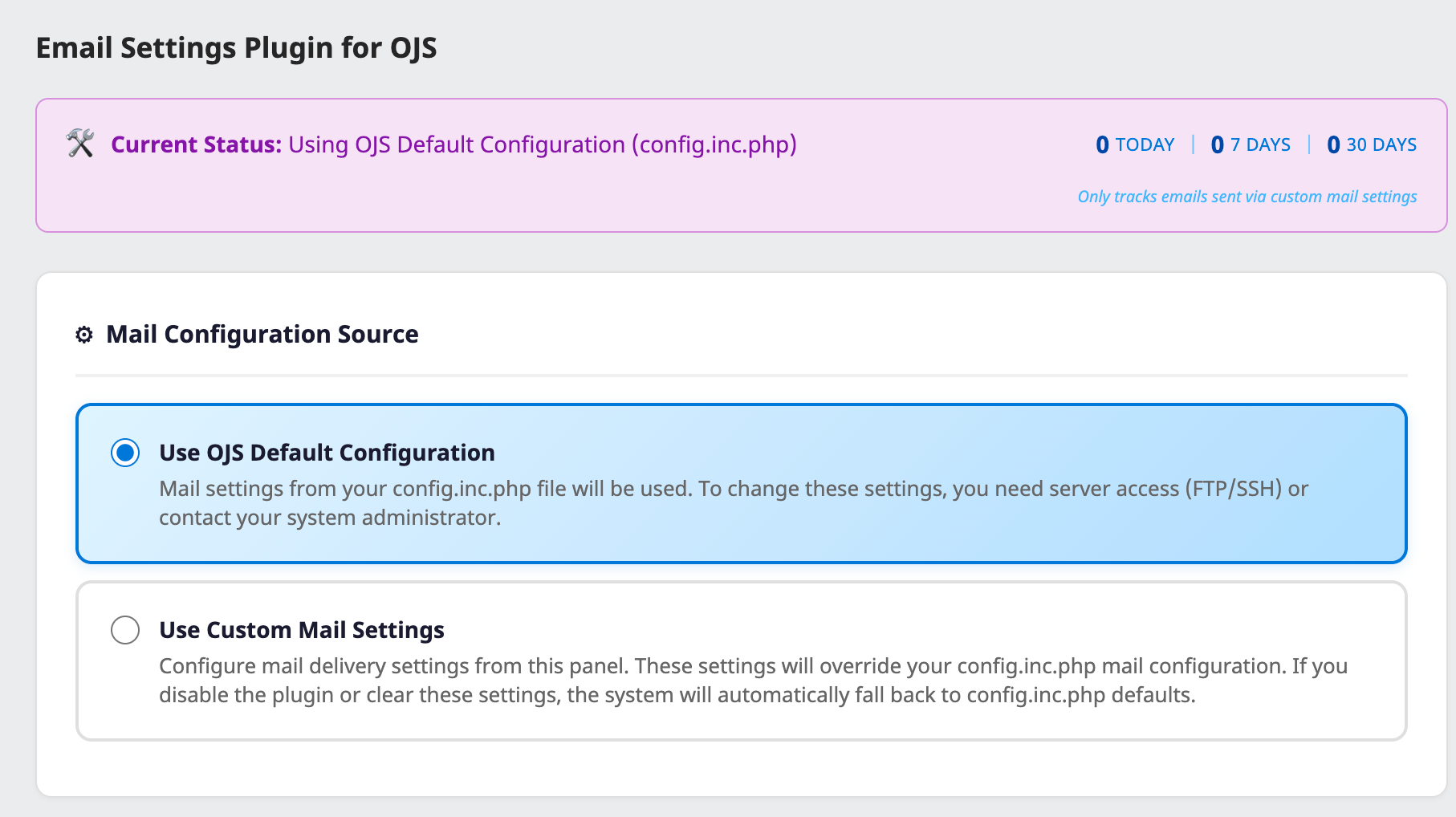
Email Settings Plugin for OJS

February 9th 2026 at 7:18 pm

Manage OJS Email Settings from the Admin Panel: Email Settings Plugin

One of the most common issues OJS users face: email delivery.

In forums, support requests, and the OJS community, the most frequently asked questions are always the same:

  • “My journal isn’t sending emails, what should I do?”
  • “How do I configure Gmail SMTP?”
  • “I can’t edit config.inc.php, I don’t have server access”
  • “Can we set up different email addresses for each journal?”

We developed the Email Settings Plugin to solve these problems and make life easier for OJS administrators.


❌ The Old Way: Complex and Technical

To change email settings in OJS, you needed to:

  1. Connect to the server via FTP/SSH
  2. Find and edit the config.inc.php file
  3. Write SMTP parameters in the correct format
  4. Risk breaking your site if you make a mistake
  5. Repeat this process for every change

Result: A nearly impossible process for journal editors and managers without technical knowledge.


✅ The New Way: Easy Management from the Panel

With Email Settings Plugin:

  • No server access required — All settings are configured from the OJS admin panel
  • Visual interface — No complex configuration files, just form fields
  • Instant changes — Click Save, and it’s immediately active
  • Secure — Passwords are stored encrypted

🌟 Key Features

📧 Popular Service Presets

Ready-made settings for Gmail, Yandex, Office 365, and Zoho Mail. Just enter your email and password, and the plugin handles the rest.

Important notes like Gmail’s App Password requirement are automatically displayed.

🏢 Multi-Journal Support

This feature was requested by many publishers.

If you manage multiple journals in a single OJS installation, you can set different SMTP configurations for each:

  • Journal A → info@journala.com (Gmail)
  • Journal B → editor@journalb.com (Yandex)
  • Journal C → contact@journalc.com (Corporate SMTP)

Each journal sends emails from its own address.

📊 Simple Statistics

Track sent emails:

  • How many emails sent today
  • How many emails sent in the last 7 days
  • How many emails sent in the last 30 days

This lets you easily see if your email system is working.

✉️ Test Email

Send a test email immediately after saving your settings. See any issues instantly and fix them.

🔒 Security

  • CSRF protection
  • Passwords encrypted with AES-256
  • Only Site Admin and Journal Manager can access (Journal Editors cannot)

📬 Deliverability Recommendations

Information about SPF, DKIM, and DMARC. Guidance on DNS settings to prevent your emails from landing in spam folders.

Settings Page — Status & Configuration


Settings Page

SMTP Configuration & Service Presets


SMTP Configuration

Gmail Preset with App Password Notice


Gmail Preset

Yandex Mail Preset


Yandex Preset

Test Email & Deliverability Recommendations


Test Email


📥 Installation

  1. Download the .tar.gz file from GitHub Releases
  2. Go to OJS → Settings → Website → Plugins → Upload A New Plugin
  3. Enable the plugin
  4. Click the “Email Settings” link in the sidebar or access plugin settings

🆓 Free and Open Source

This plugin is provided free of charge under the GPL v3 license. We developed it as our contribution to the OJS community.

For installation support, customization, or OJS consulting: ojs-services.com


📎 Links


Made with ❤️ by OJS Services — Professional OJS hosting, themes, plugins and consulting for academic journals.

The post Email Settings Plugin for OJS first appeared on OPEN JOURNAL SYSTEM SERVICES.

ORCID iD and Phone Number at Registration: Plugin for OJS 3.3

February 9th 2026 at 4:12 am

If you manage an academic journal on OJS, you already know the problem: a new author registers, submits a manuscript — and then you realize their ORCID iD and phone number are missing from their profile. You send an email asking them to update their profile, wait for a response, and sometimes follow up again. This small gap in the registration workflow costs time for everyone involved.

Registration Fields is an open-source OJS plugin that closes this gap by adding ORCID iD and Phone Number fields directly to the user registration form.

The Problem

OJS stores both ORCID iD and phone number in user profiles. These fields exist in the system and are used by DOI registration, Crossref deposits, and editorial communication. However, OJS only allows users to fill in these fields after registration, through the profile editor. There is no built-in way to ask for this information during signup.

For journals that require ORCID iDs — an increasingly common policy — this creates an unnecessary extra step. Authors register, then must be reminded to go back and add their ORCID. For editorial offices that need phone numbers for communication, the same problem applies.

What the Plugin Does

The Registration Fields plugin adds two optional fields to the OJS registration form, positioned between the profile section and the login credentials section:

ORCID iD and Phone Number fields appear on the registration form, above the Login section.

Each field can be independently enabled or disabled, and each can be set as required or optional. The configuration is done through a simple settings panel accessible from the plugin management page:

The settings panel lets you enable, require, or disable each field independently. A debug mode is available for troubleshooting.

Values entered during registration are saved directly to the corresponding OJS profile fields — the same fields used by ORCID integrations, Crossref, and the editorial contact system. No new database tables are created; the plugin simply writes to what is already there.

Key Features

ORCID iD validation accepts three common input formats — bare identifier (0000-0000-0000-0000), full HTTPS URL, or HTTP URL — and normalizes all of them to the standard https://orcid.org/ format on save.

Phone number validation accepts international formats with country codes, supporting digits, spaces, plus signs, dashes, and parentheses.

Theme compatibility is handled through flexible pattern matching with a built-in fallback mechanism. The plugin works across OJS themes including Default, Manuscript, Bootstrap3, Health Sciences, JournalPlus, NIVO, and AXIS. If a theme uses an unusual HTML structure, the fields are still rendered before the form’s closing tag.

Debug mode can be enabled from the settings panel to write diagnostic information to the PHP error log. This helps identify exactly how the plugin is interacting with a particular theme, making it easy to troubleshoot without modifying any code.

Who Is This For?

  • Journals requiring ORCID iDs at submission — Collect them upfront instead of chasing authors after registration.
  • Editorial offices that communicate by phone — Have the number from day one.
  • Journal managers who want cleaner author profiles — Reduce incomplete registrations without adding manual follow-up steps.

Technical Details

The plugin integrates with OJS through its hook system — no core files are modified. It uses output filtering to inject fields into the registration form, server-side validation for all inputs, and a deferred save mechanism to ensure data is written after the user record is created. All input is sanitized and escaped, and the plugin includes CSRF protection for its settings form.

It is compatible with OJS 3.3.0.0 through 3.3.0.22 and PHP 7.4 through 8.2.

Installation

  1. Download the latest release from GitHub.
  2. In OJS, go to Settings → Website → Plugins → Upload a New Plugin.
  3. Upload the .tar.gz file and enable the plugin.
  4. Click Settings to configure which fields appear on the registration form.

The plugin is free, open-source (GPL v3), and available in English and Turkish.


Developed by OJS Services.

The post ORCID iD and Phone Number at Registration: Plugin for OJS 3.3 first appeared on OPEN JOURNAL SYSTEM SERVICES.

Login with Email Address in OJS: Email Login Plugin

January 30th 2026 at 1:06 pm

We frequently hear this complaint from journal managers using OJS: “Our users keep requesting password resets, but they haven’t actually forgotten their passwords!”

The root cause is simple: OJS requires a username to login. However, almost every website today allows login with an email address. Users naturally enter their email address in OJS and receive the “Invalid username or password” error.

This results in:

  • 📧 Unnecessary password reset requests
  • 😤 User frustration
  • ⏰ Wasted time for journal managers

The Solution: Email Login Plugin

We developed the Email Login Plugin to solve this problem. With this plugin, users can now login using either their username or email address.

How It Works

  1. User enters their email address in the login field
  2. The plugin automatically finds the username associated with that email
  3. Login proceeds normally

The user doesn’t notice any difference – they can simply login with their email address now!

Features

Email login – Users can now login with their email address
Username support – Existing behavior unchanged, username login still works
Automatic form update – Login form label changes to “Username or Email”
Secure – SQL injection protection and input validation
No core modifications – No issues with OJS updates
Bilingual support – English and Turkish


Installation

Installation takes just a few minutes:

  1. Download the .tar.gz file from GitHub releases
  2. Go to Settings → Website → Plugins in OJS admin panel
  3. Click Upload A New Plugin
  4. Select the downloaded file
  5. Enable “Email Login” under Generic Plugins

That’s it! Your users can now login with their email addresses.


Compatibility

Requirement Version
OJS 3.3.0 – 3.3.0.22+
PHP 7.3 or higher

Security

Security was a priority during development:

  • Prepared Statements protect against SQL injection attacks
  • Email addresses are validated and sanitized before database queries
  • Disabled accounts cannot login via email
  • Error messages don’t reveal whether an email exists in the system

Frequently Asked Questions

Q: Will existing username login continue to work?
A: Yes, nothing changes. Users can login with either username or email.

Q: Will the plugin break when I update OJS?
A: No, the plugin doesn’t modify core files. It’s unaffected by OJS updates.

Q: What happens if the same email is used for multiple accounts?
A: OJS already prevents the same email from being used for multiple accounts.


Download

📥 Download Email Login Plugin v1.1.0

📖 GitHub Repository


Support

For questions or issues with the plugin:

The post Login with Email Address in OJS: Email Login Plugin first appeared on OPEN JOURNAL SYSTEM SERVICES.

Volume, Issue, Page Numbers, and Elocation-ID in Academic Journals

January 20th 2026 at 2:40 am

If you’re setting up an academic journal or managing one through OJS, you’ve probably wondered: Should I use traditional page numbers or switch to article numbers? Do I really need both volume and issue? What do PubMed and Scopus actually require?

These questions matter more than you might think. The wrong choice can cause indexing problems, citation errors, and headaches down the road. This guide breaks down everything you need to know about article numbering systems, helps you choose the right model for your journal, and shows you how to configure it properly in OJS.


Understanding the Basics

Before diving into the details, let’s clarify what each term means:

Volume

A volume is the highest-level grouping of articles, typically corresponding to one calendar year. Some high-output journals publish multiple volumes per year, but one volume per year is standard.

Example: Journal of Chemistry, Volume 48 (2024)

Issue

An issue is a subdivision within a volume. Depending on publication frequency, a journal might have 2, 4, 6, 12, or more issues per year.

Example: Volume 48, Issue 3 (May-June 2024)

Page Numbers (fpage/lpage)

Page numbers indicate where an article begins and ends:

  • fpage (First Page): The starting page
  • lpage (Last Page): The ending page

Example: Pages 245-260

In traditional journals, page numbers run continuously throughout a volume. So Issue 1 might be pages 1-150, Issue 2 would be 151-300, and so on.

Elocation-ID (Article Number)

An elocation-id (electronic location identifier) is a unique article identifier that replaces physical page numbers in digital publishing. Think of it as a permanent address for your article that doesn’t depend on where it sits in a printed issue.

Common formats:

  • e12345 (PLOS, eLife style)
  • 2024.01.15.576123 (preprint style)
  • 100234 (simple numeric)
  • eabc1234 (Science Advances style)

The elocation-id is essential for continuous publishing, where articles are published as soon as they’re ready rather than waiting for an issue to be compiled.


How Academic Publishing Has Changed

The Print Era (1665-1990s)

For over 300 years, academic publishing followed the same basic model:

  • Articles were collected into “issues” at regular intervals
  • Issues were printed and mailed to subscribers
  • Page numbers ran sequentially through each volume
  • At year’s end, issues were bound into volumes

The volume + issue + page number combination uniquely identified every article.

The Digital Transition (1990s-2010s)

When journals moved online, they initially just created digital copies of print issues:

  • PDFs replicated the print version exactly
  • Page numbers were preserved in digital format
  • Issues were still published as complete units

Modern Digital Publishing (2010s-Present)

The last decade has fundamentally transformed how journals operate:

Continuous Publishing: Articles are published immediately upon acceptance, without waiting for an issue. This is crucial in fast-moving fields like medicine and biology where timely dissemination can impact patient care.

Online-First / Ahead of Print: Articles appear online before being assigned to an issue.

HTML and XML-First Workflows: Instead of PDF-centric production, modern journals produce structured, searchable, accessible content. JATS XML has become the standard format for scholarly articles.


Four Publishing Models Compared

Model 1: Traditional (Volume + Issue + Pages)

Aspect Details
Structure Volume → Issue → Article (page range)
Example Vol. 48, No. 3, pp. 245-260
Citation format Journal Name, 48(3), 245-260
Pros Universally recognized, compatible with all indexes
Cons Publication delays, must wait for issue completion
Best for Social sciences, humanities, lower-volume journals

Model 2: Volume + Elocation-ID (No Issues)

Aspect Details
Structure Volume → Article (elocation-id)
Example Vol. 2024, e12345
Citation format Journal Name, 2024, e12345
Pros Fast publication, continuous publishing ready
Cons Some legacy systems may not handle it well
Best for High-volume journals, PLOS/eLife style publications

Model 3: Issue Only + Pages

Aspect Details
Structure Issue → Article (page range)
Example Issue 45, pp. 1-15
Citation format Journal Name, (45), 1-15
Pros Simple structure, good for regular publications
Cons Harder to group by year
Best for Newsletters, irregular publications

Model 4: Continuous Publishing

Aspect Details
Structure Year/Volume → Article (elocation-id + publication date)
Example 2024;e2024001 (published January 15, 2024)
Citation format Journal Name, 2024, e2024001. https://doi.org/…
Pros Minimum delay, each article independent
Cons Requires workflow changes, new citation habits
Best for Medicine, biology, rapidly evolving fields

What Each Index Actually Requires

This is where it gets practical. Different indexes have different requirements, and getting this wrong can cause real problems.

Requirements Comparison Table

Field PubMed PMC Crossref Scopus Web of Science DOAJ
Volume Required Required* Recommended Strongly recommended Strongly recommended Optional
Issue Optional Optional Optional Optional Optional Optional
fpage/lpage fpage OR elocation required fpage OR elocation required Recommended Strongly recommended Strongly recommended Optional
Elocation-ID Required if no fpage Required if no fpage Accepted Accepted Accepted Accepted
DOI Strongly recommended Strongly recommended REQUIRED Strongly recommended Strongly recommended Strongly recommended
ORCID Recommended Recommended Recommended Recommended Recommended Recommended

*For continuous publishing in PMC, year can substitute for volume.

Critical Rules You Must Know

PubMed and PubMed Central (PMC)

PubMed is the world’s largest biomedical literature database. Their requirements are clear:

Golden Rule: Either fpage (first page) OR elocation-id MUST be present. Articles without one or the other will be rejected.

✅ Valid: Volume: 48, Issue: 3, fpage: 245, lpage: 260
✅ Valid: Volume: 2024, elocation-id: e12345
❌ Invalid: Volume: 48, Issue: 3 (no page or elocation!)

Crossref

Crossref manages the DOI system. For DOI registration:

Golden Rule: DOI is mandatory. Other metadata fields are optional but highly recommended—the richer your metadata, the better citation linking works.

Scopus and Web of Science

These selective indexes consider metadata quality when evaluating journals:

  • Consistent metadata structure across all articles
  • Complete author information and affiliations
  • Proper date formatting
  • Structured reference lists

Important: Metadata inconsistencies (some articles have volume, others don’t) can be grounds for rejection when applying for indexing!


Which Model Should You Choose?

Decision Tree

How many articles does your journal publish per year?
│
├─► 50+ articles/year
│   │
│   └─► Consider Continuous Publishing + Elocation-ID
│       (Articles published as soon as ready)
│
├─► 20-50 articles/year
│   │
│   ├─► Can you maintain a regular issue schedule?
│   │   │
│   │   ├─► Yes → Traditional (Volume + Issue + Pages)
│   │   │
│   │   └─► No → Volume + Elocation-ID (no issues)
│
└─► Fewer than 20 articles/year
    │
    └─► Traditional model or issue-only model

Recommendations by Discipline

Field Recommended Model Reasoning
Medicine & Health Sciences Continuous Publishing Research results can save lives; speed matters
Basic Sciences (Physics, Chemistry, Biology) Volume + Elocation-ID High volume, need for fast publication
Engineering Traditional or Volume + Elocation-ID Varies by subfield
Social Sciences Traditional Slower pace, themed issues common
Humanities Traditional Traditional citation culture, monographic approach
Law Traditional Page numbers critical for legal citations
Interdisciplinary Volume + Elocation-ID Provides flexibility

Switching from One Model to Another

Already publishing with one model and want to change? It’s possible, but requires careful planning.

Switching from Page Numbers to Elocation-ID

When to switch:

  • Publication volume is increasing
  • Issue compilation is creating bottlenecks
  • Authors complain about publication delays

How to switch:

  1. Clean break: Start using elocation-id from a specific volume/year
    • Example: “Starting with Volume 49 (2025), articles will use article numbers instead of page numbers”
  2. Gradual transition: Assign elocation-id for online-first, then add page numbers when compiling issues

What to do:

  • Notify all indexes in advance
  • Update your website with an explanation
  • Preserve archive records

Switching from Volume + Issue to Volume Only

This transition is relatively straightforward:

  1. Publish your final issue and announce: “Future articles will be published continuously without issue numbers”
  2. Define your elocation-id format (e.g., e2025001, e2025002…)
  3. Update your metadata templates

Switching to Continuous Publishing

This is the most comprehensive change, requiring:

Technical infrastructure:

  • Per-article DOI registration (not batch)
  • Online-first publication system
  • HTML/XML-first workflow

Process changes:

  • Each article finalized independently
  • No page layout or issue compilation
  • Publication date = acceptance + production time (typically 1-4 weeks)

Index notifications:

  • Formal notification to PubMed, Scopus, WoS
  • Updated Crossref metadata structure

Transition Checklist

  • [ ] Does the ISSN need updating? (Usually no)
  • [ ] Website citation guide updated?
  • [ ] Authors informed of new citation format?
  • [ ] Indexes formally notified?
  • [ ] OJS settings updated?
  • [ ] DOI registration templates updated?

OJS Configuration Guide

If you’re using Open Journal Systems, here’s how to configure each model:

Traditional Model Setup

  1. Go to Settings → Journal → Masthead
  2. Configure your publication schedule
  3. For each issue, go to Issues → Create Issue:
    • Set Volume number
    • Set Issue number
    • Pages will be assigned per article
  4. When adding/editing articles, enter:
    • Pages: e.g., “245-260”

Elocation-ID Setup (OJS 3.3+)

  1. Go to Settings → Workflow → Submission → Metadata
  2. Enable the “Pages” field (this can hold elocation-id)
  3. For articles, enter the elocation-id in the Pages field:
    • Pages: e12345
  4. In your citation style, ensure elocation-id displays correctly

Continuous Publishing Setup

  1. Create a single “issue” for the entire year:
    • Volume: 2025
    • Issue: Leave blank or use “1”
    • Year: 2025
  2. Publish articles directly to this “issue” as they’re ready
  3. Use elocation-id for each article
  4. The publication date will be recorded individually per article

Need help configuring OJS? At ojs-services.com, we help journals set up and configure OJS for any publishing model. Whether you need installation, migration, or ongoing support, we’re here to help your journal succeed.


JATS XML Examples

For those producing JATS XML (required for PMC and recommended for many indexes), here are the correct structures:

Traditional Model

<article-meta>
  <article-id pub-id-type="doi">10.1234/example.2024.001</article-id>
  <volume>48</volume>
  <issue>3</issue>
  <fpage>245</fpage>
  <lpage>260</lpage>
  <pub-date date-type="pub" publication-format="print">
    <day>15</day>
    <month>06</month>
    <year>2024</year>
  </pub-date>
</article-meta>

Volume + Elocation-ID

<article-meta>
  <article-id pub-id-type="doi">10.1234/example.2024.e12345</article-id>
  <volume>2024</volume>
  <elocation-id>e12345</elocation-id>
  <pub-date date-type="pub" publication-format="electronic">
    <day>20</day>
    <month>01</month>
    <year>2024</year>
  </pub-date>
</article-meta>

Continuous Publishing

<article-meta>
  <article-id pub-id-type="doi">10.1234/example.2024.01.15.123456</article-id>
  <volume>2024</volume>
  <elocation-id>2024.01.15.123456</elocation-id>
  <pub-date date-type="pub" publication-format="electronic">
    <day>15</day>
    <month>01</month>
    <year>2024</year>
  </pub-date>
  <pub-date date-type="collection">
    <year>2024</year>
  </pub-date>
</article-meta>

Issue Only

<article-meta>
  <article-id pub-id-type="doi">10.1234/example.45.001</article-id>
  <issue>45</issue>
  <fpage>1</fpage>
  <lpage>15</lpage>
  <pub-date date-type="pub" publication-format="print">
    <month>03</month>
    <year>2024</year>
  </pub-date>
</article-meta>

Pro Tip: Need to convert your PDFs to JATS XML? Tools like FullTextCreator.com can help automate the conversion process while maintaining proper metadata structure for all publishing models.


Common Mistakes to Avoid

Mistake 1: No Page Number AND No Elocation-ID

This will cause PubMed rejection:

<!-- WRONG -->
<volume>48</volume>
<issue>3</issue>
<!-- Where's the page number or elocation-id? -->

Fix: Always include either fpage or elocation-id.

Mistake 2: Using Both Page Numbers and Elocation-ID Inconsistently

<!-- CONFUSING -->
<fpage>1</fpage>
<lpage>15</lpage>
<elocation-id>e12345</elocation-id>
<!-- Which one is authoritative? -->

Fix: Pick one system and stick with it. If using elocation-id, don’t add page numbers.

Mistake 3: Volume Without Year Context

<!-- AMBIGUOUS -->
<issue>3</issue>
<fpage>245</fpage>
<!-- Issue 3 of which year? -->

Fix: Always include volume or year information.

Mistake 4: Inconsistent Metadata Across Articles

Some articles have volume and issue, others have only volume, others have neither—this inconsistency can harm your indexing applications.

Fix: Use the same metadata structure for every article.

Mistake 5: Changing Models Mid-Volume

Starting the year with page numbers and switching to elocation-id mid-year creates confusion.

Fix: If switching models, do it at the start of a new volume/year.


Conclusion

Choosing the right article numbering system isn’t just a technical decision—it affects your journal’s discoverability, citation accuracy, and indexing success.

Key Takeaways

  1. For new journals: Consider starting with elocation-id and volume-only. It provides flexibility for the future.
  2. For established journals: You can keep your traditional model, but consider adding online-first publication.
  3. For high-volume journals: Seriously evaluate continuous publishing.
  4. For all journals:
    • Always use DOIs
    • Produce JATS XML output
    • Maintain metadata consistency
    • Collect author ORCIDs

The Golden Rule

Whatever model you choose, consistency is key. Pick a model, inform all indexes, and apply the same standard to every article.


Need Help?

Setting up or reconfiguring your OJS journal? Have questions about metadata, indexing, or publishing models?

Contact us at ojs-services.com:

  • OJS Installation and Hosting
  • OJS Upgrades and Migration
  • Custom Theme Development
  • 24/7 Technical Support

📞 WhatsApp: +90 543 221 11 28 📧 Email: info@ojs-services.com


This guide provides general information about academic publishing standards. For specific index requirements, please consult the official documentation of each indexing service.

Useful Links:


2026 ojs-services.com – Helping academic journals succeed since 2015

The post Volume, Issue, Page Numbers, and Elocation-ID in Academic Journals first appeared on OPEN JOURNAL SYSTEM SERVICES.

Creating Academic PDFs: Best Practices for Publishers and Editors

January 10th 2026 at 12:54 am

The Complete Guide to Creating Machine-Readable Academic PDFs: Best Practices for Publishers and Editors

A comprehensive guide developed from real-world experience processing thousands of academic articles


Introduction

Over the past months, our team has been developing FullTextCreator, a specialized software solution that converts academic article PDFs into HTML and JATS XML formats for digital publishing and indexing. During this journey—processing hundreds of articles from various journals, disciplines, and countries—we’ve encountered a recurring challenge: inconsistent and incomplete metadata in PDF files.

PDF remains at the heart of academic publishing—and for good reason. Its ability to encapsulate an entire article in a single, self-contained file with embedded tables, figures, and formatting makes it unmatched for portability, sharing, and archival purposes. However, the publishing landscape is evolving. Increasingly, journals are complementing their PDF offerings with HTML, XML, JATS XML, and EPUB formats to enhance accessibility, enable seamless indexing, facilitate data exchange, and comply with emerging standards. These initiatives demonstrably improve a journal’s visibility and discoverability, streamline the indexing process, and meet the growing demands of major databases—many of which now require or strongly prefer structured formats alongside traditional PDFs.

Through our work with JATS XML generation, HTML conversion, and integration with indexing systems, we’ve identified critical patterns that determine whether an article can be processed smoothly or requires extensive manual intervention. The feedback from our users and the edge cases we’ve encountered have revealed that many publishers and content creators are unaware of the specific requirements that enable automated processing.

This guide represents our collective learning—a resource we feel compelled to share with the academic publishing community. Our goal is to help publishers, editors, typesetters, and content creators produce PDF files that are not just visually appealing, but also machine-readable, interoperable, and future-proof.

Whether you’re a journal editor, a typesetting professional, or an author preparing your manuscript, following these guidelines will ensure your content integrates seamlessly with the global academic infrastructure.


Why Does This Matter?

The Digital Academic Ecosystem

Academic publishing has evolved far beyond print journals. Today, your article’s discoverability, citation potential, and long-term preservation depend on its integration with numerous digital systems:

Discovery & Indexing:

  • PubMed/PMC – The world’s largest biomedical literature database
  • Scopus – Elsevier’s comprehensive abstract and citation database
  • Web of Science – Clarivate’s premier citation index
  • Google Scholar – The most widely used academic search engine
  • DOAJ – Directory of Open Access Journals
  • TR Dizin – Turkish national academic index
  • EBSCO – Major academic database aggregator

Identifier & Registration Systems:

  • CrossRef – DOI registration and metadata repository
  • ORCID – Researcher identification system
  • ROR – Research Organization Registry
  • Fundref – Funding acknowledgment registry

Preservation & Archiving:

  • LOCKSS – Lots of Copies Keep Stuff Safe
  • CLOCKSS – Controlled LOCKSS
  • Portico – Digital preservation service
  • Internet Archive – Long-term web archiving

Open Access & Compliance:

  • OpenAIRE – European open science infrastructure
  • CORE – World’s largest aggregator of open access research
  • Unpaywall – Open access availability detection
  • Plan S compliance – Funder mandate requirements

The Cost of Poor Metadata

When PDF metadata is incomplete or inconsistent:

  1. Delayed Indexing: Articles may take months to appear in databases, or never appear at all
  2. Lost Citations: Incorrectly formatted references can’t be matched and counted
  3. Author Misattribution: Authors lose credit for their work
  4. Funding Non-Compliance: Grant requirements may not be met
  5. Preservation Gaps: Articles may not qualify for long-term archiving
  6. Reduced Discoverability: Potential readers can’t find your content
  7. Manual Processing Costs: Staff time spent fixing avoidable errors

Essential Metadata Requirements

1. Digital Object Identifier (DOI)

The DOI is your article’s permanent digital address. It must be:

Correct Format:

DOI: 10.12345/journalname.2024.001

Common Mistakes to Avoid:

  • Missing colon after “DOI”
  • Using equals sign (DOI=10.xxx)
  • Broken or unresolvable DOI links
  • DOI placed only in footer (hard to extract)

Best Practice: Display the DOI prominently on the first page, preferably in the header area with the full https://doi.org/ URL.


2. Author Information

Complete author metadata enables proper attribution and networking.

Required Elements:

Ahmet Yılmaz¹*, Mehmet Kaya², Ayşe Demir¹

¹ Istanbul University, Faculty of Medicine, Istanbul, Turkey
² Ankara University, Faculty of Science, Ankara, Turkey

* Corresponding Author: ahmet.yilmaz@istanbul.edu.tr

ORCID:
Ahmet Yılmaz: https://orcid.org/0000-0001-2345-6789
Mehmet Kaya: https://orcid.org/0000-0002-3456-7890
Ayşe Demir: https://orcid.org/0000-0003-4567-8901
OR
Ahmet Yılmaz: 0000-0001-2345-6789
Mehmet Kaya: 0000-0002-3456-7890
Ayşe Demir: 0000-0003-4567-8901

Critical Points:

  • Author order must be clear and unambiguous
  • Affiliations linked via superscript numbers
  • Corresponding author marked with asterisk (*)
  • Email address for corresponding author
  • ORCID iDs for all authors (16-digit format: 0000-0000-0000-0000)

Why ORCID Matters: ORCID disambiguation prevents author confusion (e.g., distinguishing between “J. Smith” researchers), ensures proper citation counting, and is increasingly required by funders and publishers.


3. Dates (Article Timeline)

Publication dates enable citation tracking and establish priority.

Required Dates:

Received: January 15, 2024
Revised: February 20, 2024 (if applicable)
Accepted: March 10, 2024
Published Online: April 1, 2024

Acceptable Formats:

  • January 15, 2024 (Month DD, YYYY)
  • 15 January 2024 (DD Month YYYY)
  • 2024-01-15 (ISO format: YYYY-MM-DD)
  • 15.01.2024 (DD.MM.YYYY – common in Europe)

Key Terms Recognized:

English Variations
Received Submitted, Date received
Accepted Date accepted, Approval date
Published Published online, Online first, Publication date
Revised Revision, Revised version

Important: Be consistent—use the same date format throughout the document.


4. Journal Information

Journal metadata connects your article to its publication venue.

Required Elements:

Journal of Health Sciences 2024; 15(3): 123-135
ISSN: 1234-5678 (Print) | e-ISSN: 8765-4321 (Online)
Publisher: Academic Publishing House

Components:

  • Journal title (full name, not abbreviation only)
  • Volume number
  • Issue number
  • Page range (first page – last page) OR e-location ID
  • ISSN (print and/or electronic)
  • Publisher name

ISSN Format: Always use the format XXXX-XXXX (four digits, hyphen, four digits/X).


5. Abstract and Keywords

Abstracts are crucial for indexing and discoverability.

Structure:

ABSTRACT

[Abstract text - typically 150-300 words]

Keywords: keyword1, keyword2, keyword3, keyword4, keyword5

Best Practices:

  • Use “ABSTRACT” or “Abstract” as a clear heading
  • For multilingual journals: provide abstracts in all relevant languages
  • Keywords should be separated by commas or semicolons
  • Include 3-7 keywords
  • Use terms from controlled vocabularies when possible (MeSH for medical articles)

Multilingual Considerations: If your article is in a language other than English, include both:

  • Abstract in the article’s language
  • English abstract (required by most international indexes)

6. Article Type Classification

Clearly indicate what type of article this is:

Common Types:

Type Description
Research Article Original research with methodology and results
Review Article Systematic or narrative review of literature
Case Report Clinical or scientific case description
Editorial Opinion piece by editors
Letter to Editor Correspondence or brief communication
Short Communication Brief research report
Meta-Analysis Statistical analysis of multiple studies

Display: Include article type prominently, typically above the title.


7. License and Copyright

Open access compliance requires clear licensing.

Recommended Format:

© 2024 The Author(s). This is an open access article under the 
CC BY 4.0 license (https://creativecommons.org/licenses/by/4.0/)

Common Licenses:

  • CC BY 4.0 – Attribution (most permissive)
  • CC BY-NC 4.0 – Attribution-NonCommercial
  • CC BY-SA 4.0 – Attribution-ShareAlike
  • CC BY-NC-ND 4.0 – Attribution-NonCommercial-NoDerivatives

Important: Include the full URL to the license. This enables automated license detection.


Recommended PDF First Page Layout

Here’s an ideal structure for your article’s first page:

┌─────────────────────────────────────────────────────────────────┐
│  [JOURNAL LOGO]                                                 │
│                                                                 │
│  Journal of Example Sciences                                    │
│  2024; Volume 15, Issue 3, Pages 123-135                        │
│  ISSN: 1234-5678 | e-ISSN: 8765-4321                            │
│  DOI: https://doi.org/10.12345/jes.2024.001                     │
│                                                                 │
│  ─────────────────────────────────────────────────────────      │
│                                                                 │
│  RESEARCH ARTICLE                                               │
│                                                                 │
│  Title of the Article Goes Here: A Comprehensive Study          │
│                                                                 │
│  First Author¹*, Second Author², Third Author¹                  │
│                                                                 │
│  ¹ Department of Science, University of Example, City, Country  │
│  ² Institute of Research, Another University, City, Country     │
│                                                                 │
│  * Corresponding Author: first.author@university.edu            │
│                                                                 │
│  ORCID: F. Author: 0000-0001-2345-6789                          │
│         S. Author: 0000-0002-3456-7890                          │
│         T. Author: 0000-0003-4567-8901                          │
│                                                                 │
│  Received: January 15, 2024 | Accepted: March 10, 2024          │
│  Published Online: April 1, 2024                                │
│                                                                 │
│  ─────────────────────────────────────────────────────────      │
│                                                                 │
│  ABSTRACT                                                       │
│                                                                 │
│  [Abstract text...]                                             │
│                                                                 │
│  Keywords: keyword1, keyword2, keyword3, keyword4               │
│                                                                 │
│  ─────────────────────────────────────────────────────────      │
│                                                                 │
│  © 2024 The Author(s). CC BY 4.0                                │
│  https://creativecommons.org/licenses/by/4.0/                   │
│                                                                 │
└─────────────────────────────────────────────────────────────────┘

Article Content and Structural Layout

Not only the first page but also the structure of the body text is of critical importance for machine readability and conversion processes. Paying attention to the following rules when organizing your content will ensure that our software and other indexing systems process your article correctly.

1. Heading Hierarchy and Format

Headings and subheadings within the article must clearly demonstrate the text’s hierarchical structure.

  • Visual Distinction: Main headings (H1), subheadings (H2), and lower-level headings (H3) must differ from one another in size, weight (boldness), or style. For example; main headings could be 14 pt and bold, subheadings 12 pt and bold, and a lower level 12 pt and italic.

  • Consistency: Apply your chosen format consistently throughout the entire article. This ensures software correctly detects heading levels.

2. Image, Table, and Figure Captions

Visual elements and tables are separated from the text flow during machine processing. Therefore, it is absolutely mandatory for each to have a caption indicating what it is.

  • Numbering: Use sequential numbering for each element type (e.g., Table 1, Table 2… or Figure 1, Figure 2…).

  • Descriptive Text: A short and clear title/caption explaining the element must immediately follow the numbering.

  • Position: Table titles should generally be placed above the table, while figure and image captions should generally be placed below the visual, and this rule must be consistent throughout the article.

  • Example:

    • Table 1: Demographic characteristics of patients participating in the study.

    • Figure 3: Schematic representation of the experimental setup.

3. Column Layout

The layout of the article text directly affects the accuracy of the automated extraction process.

  • Single Column Recommendation: In every possible case, we strongly recommend using a single-column layout for the article body. Single-column texts are read much more easily and accurately by machines, the text flow remains intact, and HTML/XML conversions are smoother.

  • Strict Necessity: If using two columns is absolutely necessary due to journal design, ensure that the gap between columns is distinct and the text flow (left-to-right, top-to-bottom) is clear. However, remember that multi-column structures increase the risk of conversion errors.

Pre-Publication Checklist

Before finalizing your PDF, verify:

✅ Identification

  • [ ] DOI is present and correctly formatted
  • [ ] DOI link is functional (resolves to the article)
  • [ ] ISSN/e-ISSN is displayed
  • [ ] Journal name is complete (not just abbreviation)

✅ Authors

  • [ ] All author names are listed in correct order
  • [ ] Each author has affiliation number(s)
  • [ ] All affiliations are listed with corresponding numbers
  • [ ] Corresponding author is marked (*)
  • [ ] Corresponding author email is provided
  • [ ] ORCID iDs are included for all authors

✅ Dates

  • [ ] Received date is present
  • [ ] Accepted date is present
  • [ ] Published/Online date is present
  • [ ] Date format is consistent throughout
  • [ ] Dates are logical (received < accepted < published)

✅ Content Metadata

  • [ ] Article type is clearly indicated
  • [ ] Abstract is present with clear heading
  • [ ] Keywords are listed (comma or semicolon separated)
  • [ ] Volume, issue, and page numbers are included

✅ Structural and Visual Layout

  • [ ] Headings and subheadings are in different formats (size, bold, etc.) to show hierarchy

  • [ ] All images, tables, and figures have numbered and descriptive captions

  • [ ] Article body is prepared in a single-column layout if possible

✅ Rights & Access

  • [ ] Copyright statement is included
  • [ ] License type is specified
  • [ ] License URL is provided

✅ Multilingual (if applicable)

  • [ ] Abstract in article language
  • [ ] Abstract in English
  • [ ] Keywords in both languages
  • [ ] All dates use consistent terminology

Common Mistakes and How to Fix Them

Problem Impact Solution
DOI in footer only Extraction failure Move to header/first page body
Unclear author order Attribution errors Use numbered sequence
Missing ORCID Author disambiguation fails Add for all authors
Date format mixing Parsing errors Use one format consistently
No license URL Open access detection fails Include full CC URL
ISSN typo Journal matching fails Double-check format
Abstract without heading Content extraction fails Add clear “ABSTRACT” heading

Conclusion

Creating well-structured PDFs is an investment in your journal’s digital future. The metadata you include today determines how discoverable, citable, and preservable your content will be for decades to come.

At FullTextCreator, we’ve built our system to handle variations in formatting—but the cleaner your source files, the more accurate and faster the conversion process. By following these guidelines, you’re not just making our job easier; you’re ensuring your authors’ work reaches its full potential audience.

Questions or need help? Visit fulltextcreator.com or contact us at support@fulltextcreator.com.


This guide is provided by the FullTextCreator team as a service to the academic publishing community. We welcome feedback and suggestions for improvement.

Last Updated: January 2025

The post Creating Academic PDFs: Best Practices for Publishers and Editors first appeared on OPEN JOURNAL SYSTEM SERVICES.

Removing “View of …” from Article PDF Titles in OJS 3.3

December 13th 2025 at 2:33 pm

In Open Journal Systems (OJS) 3.3, some journals notice that when an article PDF is opened using the
PDF.JS Viewer, the browser tab title appears as “View of Article Title”.
While this is expected behavior, many journal editors and article authors find it unnecessary or distracting.

In some cases, the same article may appear in Google search results both with and without the
“View of …” prefix, which can be confusing and may give the impression that they are different pages.
At the moment, there is no confirmed evidence that this has a direct negative impact on Google Scholar.
However, from an editorial and presentation perspective, many journals prefer to display only the article title.

Why does “View of …” appear?

The PDF viewer page title is built using a translation key in the OJS locale files:
article.pageTitle. In the default English locale, this key is often defined as:
View of {$title}. That’s why the browser tab title becomes “View of …”.

Why this can be undesirable

  • It may look unprofessional or unnecessary to editors and authors.
  • Google search results may show the same article twice (with and without “View of …”).
  • Readers may assume the entries represent different articles.
  • Presentation may feel inconsistent across languages.

What NOT to do

You can remove the prefix by editing core files such as locale/en_US/locale.po
via FTP/SFTP. However, this is not update-safe. Future OJS upgrades can overwrite core locale files,
causing the “View of …” prefix to return.

Recommended solution: Custom Locale Plugin (Update-Safe)

The cleanest approach is to override the translation string using the Custom Locale Plugin,
so you do not modify core files and your change survives updates.

Step 1: Enable the Custom Locale Plugin

Go to Administration → Website Settings → Plugins, then enable
Custom Locale Plugin.

Step 2: Find the correct locale file and key

Important note: the Custom Locale interface does not provide a direct global search box.
After selecting a language, OJS will show a list of locale files for that language.

  1. Open the Custom Locale interface and select the language English (en_US).
  2. After selecting the language, you will see the list of locale files. From the list, open
    locale/en_US/locale.po.
  3. Inside that file, locate the translation key article.pageTitle.
    You can also confirm this key by checking the same file via FTP/SFTP first and noting the exact label to override.

Step 3: Override the page title string

Once you find article.pageTitle, update its value from
View of {$title} to {$title}.
This removes the “View of ” prefix while keeping the article title placeholder intact.

Step 4: Clear cache

After saving the override, clear the OJS cache to ensure the new translation loads.
If you have server access, remove template/cache files from the OJS cache directory (common locations include
cache/t_compile). Then hard refresh your browser.

Result

After applying this override, the PDF viewer page title will display only the article title.
The “View of …” prefix will be removed, and because this is done through Custom Locale, it will remain
in place even after OJS updates.

Final note on indexing

There is no confirmed evidence that this behavior negatively impacts Google Scholar indexing.
Still, removing “View of …” can help keep your journal’s presentation clean and reduce confusion in general
Google search results when duplicate-looking entries appear.

The post Removing “View of …” from Article PDF Titles in OJS 3.3 first appeared on OPEN JOURNAL SYSTEM SERVICES.

OJS Premium & Custom Themes

December 12th 2025 at 11:43 pm

Open Journal Systems (OJS) is the most widely used open-source journal management system in the world, trusted by tens of thousands of scholarly journals across all disciplines. Its strength lies not only in editorial workflows and publishing standards, but also in its flexibility when it comes to design and visual identity.

A journal’s website is often the first impression for authors, reviewers, and indexing bodies. While the content, policies, and editorial quality remain the same, the visual presentation can dramatically change how a journal is perceived.

One of the key advantages of OJS is that journal owners can change the entire look and feel of their site without touching the published content, articles, or metadata. This allows journals to modernize their appearance while preserving their publishing history and technical integrity.

Three Theme Options for OJS Journals

OJS offers journal managers three clear paths when it comes to themes and design:

1. Free OJS Themes
OJS comes with several free, default themes. These are reliable, functional, and suitable for basic needs. Minor color or layout adjustments can be applied, but design flexibility is limited.

2. Premium OJS Themes
Premium themes are professionally designed templates that enhance usability, navigation, and visual consistency. They help journals stand out with modern layouts, improved homepage structures, better readability, and optional dark/light modes — all without altering editorial workflows.
👉 Explore premium OJS themes:
https://ojs-services.com/ojs-themes/

3. Custom OJS Theme Design
For journals that want a fully unique identity, a custom theme is the strongest option. These designs are developed specifically according to the journal’s discipline, audience, branding, and technical needs. Custom themes can be built for OJS 3.3 and OJS 3.5, ensuring long-term compatibility and scalability.
👉 Learn more about custom OJS theme design:
https://ojs-services.com/ojs-themes-custom-design/

Why Design Matters in Academic Publishing

A well-designed OJS theme does more than look good. It:

  • Strengthens the journal’s academic identity
  • Improves user experience for authors and readers
  • Supports international visibility and professionalism
  • Aligns the journal with modern publishing standards

In today’s competitive scholarly environment, design is no longer cosmetic — it is strategic. With the right OJS theme, journals can present their content with clarity, confidence, and character.

The post OJS Premium & Custom Themes first appeared on OPEN JOURNAL SYSTEM SERVICES.

Bulk Plugin Manager for OJS

December 3rd 2025 at 10:34 pm

This free plugin for OJS 3.3.x simplifies plugin management, solves common problems, and saves you hours of work.


🎯 Why We Developed This Plugin

One of the most common issues OJS users face: “The Plugins page won’t load!”

This problem usually stems from version mismatches between the database and file system. When this happens, OJS’s standard interface completely freezes, leaving administrators helpless.

That’s exactly why we developed Bulk Plugin Manager.


✨ What Does It Do?

📊 Instant Status Overview

See your entire plugin status at a glance:

  • Your OJS version
  • Installed, active, and inactive plugin counts
  • Plugins awaiting updates
  • Problematic plugins

🔧 Automatic Problem Detection

The plugin automatically detects the following issues:

  • Sync issues: Database and file versions differ
  • Missing files: Database record exists but files are deleted
  • Version conflicts: Local version is higher than Gallery version

⚡ One-Click Solutions

Ready-made solution buttons for every problem:

  • Fix DB: Synchronizes database version with file
  • Clean DB: Removes orphan records
  • Install: Downloads missing files from Gallery
  • Update: Updates plugin to the latest version

🌍 Multi-Language Support

  • 🇬🇧 English
  • 🇹🇷 Türkçe

🚀 When Should You Use It?

1. When OJS Plugin Page Won’t Load

The most common scenario! When the OJS plugin page freezes due to database-file mismatch, Bulk Plugin Manager comes to the rescue. You can access it directly via URL:

https://yoursite.com/index.php/journal/bulkPluginManager

2. When You Need to Update Multiple Plugins

In the standard OJS interface, you have to update plugins one by one. With Bulk Plugin Manager, you can select multiple plugins and update them with a single click.

3. When You Need Plugin Cleanup

Ideal for detecting and cleaning up “ghost” records left in the database from deleted plugins.

4. For Quick Status Check

Get instant summaries with dashboard cards and spot issues immediately.


📑 Tabs and Their Functions

Tab What It Shows
🔌 Installed All installed plugins. Shows DB and file versions side by side.
🔧 DB Fix Required Plugins where database version is higher than Gallery. Requires fixing.
🔄 Sync Issues Plugins where DB and file versions differ. Can cause OJS page to freeze.
📁 Missing Files Plugins with deleted files but remaining DB records.
⬆️ Updates Plugins awaiting updates.
📦 Available Not yet installed, available plugins from Gallery.
⚠️ Newer Installed Local version is newer than Gallery. Usually not a problem.
Not in Gallery Custom plugins not found in PKP Gallery.

Each tab includes a helpful description at the top explaining what it contains and what actions are available.


🔍 Filters

The Installed tab has 5 filters to narrow down plugins:

Filter Shows
All All plugins
Active Only active ones
Inactive Only inactive ones
Sync Issues Plugins where DB ≠ File version
Missing Files Plugins without files on server

🛠️ Action Buttons

🔧 Fix DB

Synchronizes database version with file version. Use when:

  • OJS plugin page won’t load
  • Plugin is stuck in “current=0” error
  • Version mismatch after manual intervention

🗑️ Clean DB

Deletes all database records for the plugin. Use when:

  • You manually deleted plugin files
  • Plugin appears in list but has no files

📦 Install

Downloads and installs the plugin from PKP Gallery. Use when:

  • You want to install a new plugin
  • You want to re-download missing files

⬆️ Update

Downloads and updates to the latest version from Gallery.


🐛 Common Problems and Solutions

Problem 1: OJS Plugin Page Won’t Load

Cause: Database version doesn’t match file version.

Solution:

  1. Access Bulk Plugin Manager via URL
  2. Go to “Installed” tab
  3. Select “Sync Issues” filter
  4. Click “Fix DB” button on each row

Problem 2: Deleted Plugin Still in List

Cause: Files were deleted but database records remain.

Solution:

  1. Go to “Installed” tab
  2. Select “Missing Files” filter
  3. Click “Clean DB” button

Problem 3: Plugin Won’t Update

Cause: Local version is higher than Gallery version.

Solution:

  1. Go to “DB Fix Required” tab
  2. Reset version with “Fix DB”
  3. Then update normally

📥 Installation

  1. Download the plugin from GitHub
  2. Extract to /plugins/generic/ folder
  3. OJS Admin Panel > Website Settings > Plugins
  4. Generic Plugins > “Bulk Plugin Manager for OJS” → Enable
  5. Click “🔌 Bulk Plugin Manager” link in the sidebar

Alternative Access:

https://yoursite.com/index.php/JOURNAL/bulkPluginManager

📥 Download

GitHub: github.com/ojs-services/ojs-bulk-plugin-manager

Latest Release: Releases


📌 Important Notes

⚠️ Backup First: We recommend backing up before performing database operations.

👤 Permissions: Only Site Administrator and Journal Manager roles can access.

🔒 OJS 3.4+ Safety: This plugin is only compatible with OJS 3.3.x. If installed on OJS 3.4 or higher, it automatically disables itself.

🌐 Internet Required: Plugin information is fetched from PKP Gallery.


🤝 Support

For questions or suggestions:


📄 License

This plugin is provided free of charge under the GNU General Public License v3.

The post Bulk Plugin Manager for OJS first appeared on OPEN JOURNAL SYSTEM SERVICES.

Preprints and Continuous Publication in OJS 3.6

November 2nd 2025 at 5:43 pm

The Public Knowledge Project (PKP) has unveiled one of the most transformative updates to the Open Journal Systems (OJS) platform:
Preprints and Continuous Publication are now natively integrated in OJS 3.6 — a long-awaited step toward faster, more transparent, and flexible scholarly communication.

Developed under the Open Research Europe (ORE) initiative and funded by the European Commission, this release redefines how journals can manage the flow of research—from first submission to final publication.

“With OJS 3.6, journals can publish preprints, release articles continuously, and update versions without losing transparency.”


🚀 Key Advancements in OJS 3.6

1. Preprint Workflow Integration

Editors can now publish submissions before peer review as Author’s Original (AO) versions, and later upgrade them to Version of Record (VoR) once peer review is complete.

How it works:

  • Submit → Publish as Preprint (AO)
  • Peer review and production → Publish as Version of Record (VoR 1.0)
  • Minor correction → VoR 1.1

This unified workflow means journals no longer need separate systems like OPS to handle preprints.

Example: A paper can be made public as a preprint today and officially released as a peer-reviewed VoR version next month, all within the same OJS installation.

🎥 Watch the official presentation: Preprints and Continuous Publication in OJS 3.6 – thanks to OSS ORE and the European Commission.


2. Continuous Publication Model

Traditionally, OJS tied every article to a journal issue.
Now, with Continuous Publication, that limitation is gone.

Editors can:

  • Publish articles immediately, without waiting for an issue to close.
  • Assign those articles to an issue later, if desired.
  • Organize content thematically using categories rather than issues.

“Publish first, organize later — OJS 3.6 makes it possible.”

This model benefits open-access and fast-moving journals that value immediacy and reader access.


🧭 Adopting the NISO JAV Standard

OJS 3.6 introduces formal terminology and structure through the NISO Journal Article Versioning (JAV) standard.
This ensures interoperability between publishers, repositories, and indexing systems.

Term Meaning Description
Author’s Original (AO) Preprint The author’s version prior to peer review.
Version of Record (VoR) Published Record The final, peer-reviewed and accepted article.
Semantic Versioning Transparent Tracking A structured numbering system: 1.0 (initial), 1.1 (minor correction), 2.0 (major revision).

Each revision is preserved and citable — improving traceability and trust in the scholarly record.


🧩 Three Publishing Models, One Platform

OJS 3.6 allows journals to combine or choose between three workflows:

  1. Traditional Issue-Based Publishing
    • Peer review → Issue assignment → VoR 1.0 publication.
  2. Hybrid Preprint → VoR Publishing
    • Early Preprint (AO) release → later upgraded to VoR 1.0 (and minor updates like 1.1).
  3. Fully Continuous Publishing (No Issues)
    • Articles appear immediately and are organized by categories or thematic collections.
    • Issue-related fields are automatically hidden for simplicity.

Tip: Editors can mix and match — some sections may follow issues, others continuous publication.


⚙️ Simplified Editor Experience

📋 Streamlined Workflow Interface

  • The Version Management tool has been moved to a clear sidebar.
  • The Schedule for Publication button can now be used from the earliest stages.
  • Editors can decide for each article whether it’s a Preprint, VoR, or Continuous Publication item.

🏠 Homepage Display Options

Editors can now select which components appear on the journal’s homepage:

  • Current Issue
  • Most Recent Articles (for continuous publication)
  • Thematic Categories

All can be displayed independently or together.


🔗 DOI, URLs, and Indexing Compatibility

  • Each version (AO and VoR) can have a distinct DOI, with cross-links between them.
  • Article URLs without version identifiers always point to the latest version—ideal for readers.
  • Google Scholar and indexing systems will gradually adapt to versioned metadata as the NISO JAV standard becomes widely recognized.

“Readers always land on the latest version — without losing access to previous ones.”


🧮 Zero-Configuration Philosophy

Gone are the endless checkboxes.
OJS 3.6 introduces a “zero-configuration” approach — editors make decisions at the article level, not in global settings.

Benefits:

  • Cleaner setup screens
  • More flexibility for hybrid workflows
  • Easier long-term maintenance and upgrades

🔮 Roadmap and Performance Outlook

  • OJS 3.5 will serve as the Long-Term Support (LTS) version — stable for large datasets.
  • OJS 3.6 focuses on innovation and testing new workflows like preprints and continuous publication.
  • OJS 3.7 will consolidate these features into the next LTS release.

“3.6 is the testing ground; 3.7 will be the lasting foundation.”

Performance improvements from 3.5 are also being ported to 3.6, ensuring scalability for large journal installations.


🛠️ Coming Soon: In-Platform Typesetting & New Theme

Two major enhancements are in active development:

  1. Integrated Typesetting Workflow
    • Edit article body text directly in OJS.
    • Export polished PDFs and HTML versions without external tools.
  2. Next-Generation Theme System
    • Built-in version badges and clearer “Preprint / VoR” indicators.
    • Cleaner layout and easier customization via the AI-Theme framework.

🧾 Recommendations for Editors

  1. Define Your Publication Policy
    • Clarify how preprints and continuous publication fit into your journal.
  2. Establish a Versioning Policy
    • Use structured versioning: 1.0 → 1.1 → 2.0.
  3. Manage DOI Strategy
    • Assign separate DOIs for AO and VoR, and link them for indexing.
  4. Update Homepage and Theme
    • Highlight version info and preprint notices clearly.
  5. Prepare for Indexing Changes
    • Maintain consistent metadata and clean URLs for versioned content.

📆 Release Timeline and Journal Support

OJS 3.6 is expected to be officially released during 2025.
This version will not be marked as LTS, as it primarily focuses on testing and refining new workflows.
The following version, OJS 3.7, will integrate these features as part of a stable LTS release.

These details are preliminary and may evolve as development progresses.
Once these features are fully stable and available, we will contact all journal managers we serve to provide guidance, migration options, and implementation support.

Commitment: At OJS-Services.com, we ensure every journal stays aligned with the latest, most stable, and standards-compliant OJS evolution.

The post Preprints and Continuous Publication in OJS 3.6 first appeared on OPEN JOURNAL SYSTEM SERVICES.

COAR Resource Types in OJS: Ensuring OpenAIRE Compliance

October 28th 2025 at 9:58 pm

To achieve full OpenAIRE compliance, OJS journals must accurately classify their content using the COAR Resource Type system.

What Is the COAR Resource Type Classification System?

In the world of open-access publishing, content is only as visible as the metadata behind it.
The COAR Resource Type Classification System — developed by the Confederation of Open Access Repositories (COAR) — provides a unified way to describe what kind of resource a publication really is.

Whether it’s a research article, dataset, software package, or interactive web resource, this classification ensures that repositories, harvesters, and indexing systems like OpenAIRE, Crossref, or ORCID can accurately recognize and categorize your content.

It’s not just a list of labels — it’s the universal vocabulary of academic content.

Why It Matters

  • OpenAIRE Compliance: Ensures your OJS journal metadata meets European Open Science standards.
  • 🌐 Global Discoverability: Makes your publications compatible with international repositories and aggregators.
  • ⚙️ Consistent Metadata: Standardizes resource descriptions across OJS, DSpace, Zenodo, and other open repositories.
  • 📊 Interoperability: Enables seamless exchange of records via OAI-PMH and other metadata protocols.

How It Works in OJS

The OpenAIRE plugin for OJS integrates COAR Resource Types directly into your journal’s metadata.
When activated, the plugin automatically maps each article type to a corresponding COAR category — ensuring that your repository exports valid and compliant records through the OAI-PMH interface.

This not only saves editorial time but also guarantees that your journal meets the OpenAIRE Guidelines for Literature Repository Managers (v4.0).

COAR Resource Type Categories

Below is a practical overview of the main COAR categories and what kind of materials they typically represent in research publishing.

🎨 Artistic Work

Creative outputs such as performances, exhibitions, digital art, and visual installations — often published by arts faculties or cultural repositories.

🗺️ Cartographic Material

Spatial and geographic representations.

  • Map: Topographic or thematic maps used in earth sciences, geography, and urban studies.

📦 Collection

Curated groups of related content, often organized by project, author, or topic.

  • Archival Collection: Historical records, correspondence, or digitized archives.
  • Court Documents: Legal records or case files.

📊 Dataset

Structured data from research activities — essential for reproducibility and open science.
Examples include:

  • Experimental Data: Lab results, measurements, or sensor data.
  • Survey Data: Results from questionnaires or social research.
  • Genomic Data: DNA sequencing and bioinformatics data.
  • Simulation Data: Model outputs and computational analyses.
  • Laboratory Notebook: Raw experimental notes and logs.

💡 Design

Creative and technical design outputs.

  • Industrial Design: Product or engineering prototypes.
  • Layout Design: Publication layouts or digital interface designs.

🖼️ Image

Visual or multimedia content.

  • Still Image: Photographs, figures, illustrations.
  • Video (Moving Image): Recorded lectures, animations, or documentaries.

🌐 Interactive Resource

Web-based or user-interactive materials.

  • Website: Research portals, educational microsites, or project dashboards.

🧭 Knowledge Organization System

Taxonomies, ontologies, and controlled vocabularies used to organize information within repositories and research databases.

🎓 Learning Object

Educational or training materials — including e-learning modules, tutorials, and teaching resources.

💻 Software

Code and computational tools used in research.

  • Research Software: Analytical or simulation software developed for scientific studies.
  • Source Code: Original programming code in any language (e.g., Python, R, PHP).

📚 Text

The most comprehensive category, covering all text-based academic outputs.
Includes:

  • Book / Book Part: Monographs, edited volumes, or chapters.
  • Journal Article: Research, review, data, or software papers.
  • Thesis: Bachelor’s, master’s, or doctoral dissertations.
  • Conference Output: Papers, posters, or presentations.
  • Report: Technical, policy, or project deliverables.
  • Preprint: Early versions of manuscripts before peer review.
  • Review / Commentary / Peer Review: Evaluation or critique articles.
  • Working Paper: Preliminary findings shared before formal publication.

🔊 Sound

Audio recordings, interviews, and music compositions — commonly used in ethnography, linguistics, and digital humanities.

⚙️ Workflow

Digital representations of processes, pipelines, or methodological steps.
Useful for documenting AI model training, laboratory procedures, or research automation.

Integrating COAR Resource Types in OJS

OJS users can easily implement the COAR system using the OpenAIRE plugin, ensuring:

  • Automatic assignment of resource types to submissions.
  • Metadata validation for OpenAIRE harvesters.
  • Improved visibility of published content in global repositories.

This integration helps your journal transition from simply open access to openly connected — fully interoperable within the international research ecosystem.

Final Thoughts

The COAR Resource Type Classification System is not just a metadata list — it’s a foundation for international visibility, data interoperability, and research transparency.

For journals powered by OJS, adopting this classification through the OpenAIRE plugin means more than compliance; it means joining a global network of discoverable, machine-readable academic content.

The post COAR Resource Types in OJS: Ensuring OpenAIRE Compliance first appeared on OPEN JOURNAL SYSTEM SERVICES.

Fixing OJS 3.4 Email Sending Issues on Shared Hosting (Bluehost, GoDaddy, HostGator, etc.)

October 13th 2025 at 12:18 am

At OJS Services, we provide installation, upgrade, hosting, and technical support for Open Journal Systems (OJS) across many countries.
Working with hundreds of journals hosted on different servers — Bluehost, GoDaddy, HostGator, Hetzner, IZAhost, and others — allows us to observe version-specific behaviors very closely.

Recently, after many OJS journals upgraded to OJS 3.4, one issue became increasingly common:

Emails appear to be sent successfully, but never reach the recipient.

The Root Cause

With OJS 3.4, PKP introduced a major change to the email system.
The old PHPMailer library was replaced by Symfony Mailer — a modern, secure framework that enforces strict SSL/TLS and authentication rules.

Unfortunately, most shared hosting providers (especially Bluehost, GoDaddy, HostGator) apply strict limits on outgoing SMTP connections from PHP applications.
As a result:

  • SMTP authentication succeeds,
  • OJS reports “Message sent successfully,”
  • but the email quietly disappears in the Exim mail queue.

Meanwhile, when sending through webmail (Roundcube), everything works perfectly — because webmail doesn’t use SMTP.
It uses the local sendmail transport instead.

The Reliable Fix: Use Sendmail Instead of SMTP

The simplest and most reliable fix is to switch OJS from SMTP to sendmail.
This makes OJS send mail directly through the local mail transport agent (Exim/Postfix), bypassing all TLS and firewall restrictions.

Open your config.inc.php file and edit the [email] section like this:

[email]
default = sendmail
sendmail_path = "/usr/sbin/sendmail -t -i"

; SMTP settings can stay for reference but will not be used
smtp = On
smtp_server = box1234.bluehost.com
smtp_port = 587
smtp_auth = tls
smtp_username = editor@yourjournal.org
smtp_password = yourPassword

After saving these settings, OJS will start delivering emails instantly — using the same internal channel that webmail already relies on.

Why This Difference Occurs

In OJS 3.3 and earlier versions, both SMTP and sendmail behaved similarly because PHPMailer handled both transports loosely.
But starting with OJS 3.4, Symfony Mailer enforces strict certificate validation and secure transport layers.

On shared servers, these extra security layers often conflict with provider-side restrictions.
The result: the connection appears successful, but the message is dropped.

sendmail, on the other hand, talks directly to /usr/sbin/sendmail on the same server.
It stays local, avoiding SSL negotiation entirely — which makes it both faster and more compatible with cPanel-based servers.

Field-Tested Experience

We first confirmed this issue with several clients hosted on Bluehost and GoDaddy.
Even with valid SPF, DKIM, and correct SMTP credentials, emails were not reaching inboxes.
After switching to sendmail, all notifications — user registration, password reset, submission acknowledgment — started working immediately.

We later verified the same behavior on HostGator, GoDaddy and Namecheap servers.
In OJS 3.4, sendmail is consistently more reliable than SMTP on shared environments.

Technical Note

This isn’t a new feature — it’s the default configuration that OJS has always recommended.
In the template file config.TEMPLATE.inc.php, the line default = sendmail has been there for years.
However, many users switched to SMTP because it “sounded more professional.”

After the 3.4 update, our tests confirm that on shared hosting, sendmail is the safer choice.

Final Recommendation

If you’re using OJS 3.4 and your emails appear to send but never arrive:

  • Even if SPF, DKIM, and PTR records are correct,
  • Even if your test email shows “Sent successfully,”
    👉 Switch to sendmail first.
    In most cases, that alone solves the issue.

Lessons From Experience

At OJS Services, we provide direct technical support to many academic journals every week.
Our observation is simple: most OJS email problems aren’t caused by the software itself, but by how different hosting providers handle outgoing mail.
Our job is to find the balance between both worlds — reliability and compatibility.

That’s why we now apply this rule for all new OJS 3.4 and 3.5 installations:

“Use sendmail for shared hosting. Use SMTP for dedicated servers.”

It’s simple, stable, and future-proof.

The post Fixing OJS 3.4 Email Sending Issues on Shared Hosting (Bluehost, GoDaddy, HostGator, etc.) first appeared on OPEN JOURNAL SYSTEM SERVICES.

DNB Export Plugin

September 30th 2025 at 4:04 pm

DNB Export Plugin: Strengthening OJS Integration with National Libraries

Open Journal Systems (OJS) has become the world’s most popular platform for managing and publishing academic journals. One of the key reasons behind its success is the rich ecosystem of plugins and integrations that connect journals with indexing services, archiving systems, and research infrastructures worldwide. One such plugin that deserves spotlight is the DNB Export Plugin, maintained by the OJS community (GitHub – ojsde/dnb).

This plugin allows journals to seamlessly deposit their metadata and publications into the Deutsche Nationalbibliothek (DNB) – the German National Library. With this connection, OJS journals benefit from:

  • Increased visibility through national library catalogs

  • Reliable archiving of scholarly content for the long term

  • Stronger compliance with international publishing standards

The DNB integration is a great example of how OJS goes beyond being a journal management tool. It is part of a global network, linking research with repositories, libraries, and indexing platforms. For editors and institutions, this means less manual work, greater discoverability, and a trusted place in the international scholarly landscape.

At OJS-Services, we support journals in making the most of these integrations – from setup to ongoing workflows – so that your research reaches the widest possible audience.

The post DNB Export Plugin first appeared on OPEN JOURNAL SYSTEM SERVICES.

❌
❌