
Normal view

There are new articles available, click to refresh the page.
Before yesterdayOJS /OMP

Article Numbers for OJS

July 8th 2026 at 12:49 am

Scholarly publishing is quietly leaving the page behind.

For centuries an article’s address was its page range: pp. 245–260. That made sense when a journal was a physical object — paper had to be bound, and binding meant every article started somewhere and ended somewhere. But the page range was never really about the article. It was about the paper.

The paper is going away. Journals increasingly publish each article the moment it clears review — sometimes while later revisions are still in flight — rather than holding it for a quarterly issue. “Continuous publishing” is becoming the norm; the volume/issue/year container, itself a relic of print scheduling, is loosening and in some venues disappearing. Output is shifting from PDF (a print imitation) to native HTML. An article, in other words, is starting to behave much more like a web page than a page in a book.

When there is no issue to sit inside, “starts on page 245” stops meaning anything. What identifies the article instead is an article number (also called an elocation-id): PLoS ONE 15(4): e0231470, Electron. J. Combin. 27 (2020) P2.16, J. Vac. Sci. Technol. … 051101. The death of the page number isn’t a fashion. It’s the unavoidable consequence of the medium changing (paper to screen) and the rhythm changing (batched issues to continuous flow).

That is the gap this plugin was built for.

The problem in OJS today

Open Journal Systems has no dedicated field for an article number. So editors do the only thing they can: they type it into the Pages field. That single workaround quietly corrupts metadata everywhere downstream.

  • Google Scholar reads the value as both citation_firstpage and

citation_lastpage — a fake one-page range, and a broken bibliographic record.

  • Crossref expects the value in a dedicated <item_number>, not in

<pages>; a page-field value is deposited in the wrong place.

  • PMC / PubMed require either a first page or an <elocation-id>; a number

buried in page text can’t produce a valid one, and the deposit risks rejection.

  • Citation styles format article numbers specially — “Article e298”,

“Art. no. e298” — which a page-field value can never trigger.

PKP has known about this since 2019 (issue #4695). The core defined an internal property for it but left the export, citation, and editorial pieces unfinished. This plugin completes the chain — and does so in a way designed to hand back to core cleanly if core ever finishes it.

The Pages-field workaround breaks metadata everywhere
With no article-number field, editors put it in Pages — and the metadata breaks in four places at once.

What it does

A single generic plugin covers the article number end to end:

Where What happens
Editor An “Article Number” field on the publication form and in QuickSubmit. Uniqueness is enforced per journal; a published article’s number is locked so a deposited coordinate can’t change silently.
Reader The number is shown on the article page, in any theme.
Google Scholar The fake firstpage/lastpage pair is suppressed when a number is set.
Crossref <item_number item_number_type="article_number"> is injected and <pages> dropped; the output validates against Crossref’s schema.
JATS (PMC/SciELO) <fpage>/<lpage> is replaced with <elocation-id>, JATS4R-safe.
Citations Style-aware mapping across the ten bundled CSL styles — e.g. APA “Article e0001”.

The standards, mapped honestly

An article number is carried differently by every downstream system, and getting that mapping right is the work:

System Correct carrier
Crossref <publisher_item><item_number item_number_type="article_number"> — mutually exclusive with <pages>
JATS (PMC, SciELO) <elocation-id> — replaces <fpage>/<lpage>
PubMed / PMC first page or elocation-id must exist
Google Scholar (no tag) — so don’t emit a fake page range
CSL / citeproc the number variable
One article number mapped correctly to every standard
The plugin carries the same number into each system through its correct field — read-only against your data.

An engineering stance, not just a feature

We treated this as structural infrastructure, and made a few promises we don’t break:

It never touches your data. The plugin only ever writes its own value. It never writes to the Pages field or any other core field — that’s a hard architectural guarantee, independently verified, not a convention.

It never forks anything. Crossref, JATS, Scholar and citation output are amended by attaching to existing extension points — no export plugin, and no CSL style file, is ever copied or edited.

It’s opt-in, per journal. Off by default. When off, OJS behaves exactly as before.

It’s built to hand off to core. The value is stored under PKP’s own internal property name, workNumber. If a future OJS core ships the field natively, the plugin detects it, steps aside, and your data is already in the right place under the right name — a zero-migration hand-off. The plugin is designed to be always usable, or cleanly transferable. Either way, the journal’s data is safe.

Honest about the edges

Good tools are honest about what they don’t do. Two limits are worth stating plainly, because both come from the ecosystem, not from cutting corners.

Citation styles. Of the ten bundled styles, seven render the article number cleanly (ACM, ACS, APA, Chicago, Turabian, Vancouver — and MLA, after we fixed a double-printing bug). Three — ABNT, Harvard and IEEE — never expose the CSL number variable for journal articles and force a “p.” (page) label onto the value. The number is present and correct in those styles, but shown with a page label. Removing that would mean forking the bundled CSL files, which we don’t do.

RIS / BibTeX downloads. The article number is present and correct in both, but in a page field (RIS SP, BibTeX pages) rather than a canonical machine-readable one. Writing it to BibTeX’s eid would require forking a CSL file. For RIS we actually found a fork-free way to write the C7 (“article number”) tag — and chose not to ship it, because C7‘s round-trip isn’t guaranteed across reference managers, and an uncertain gain wasn’t worth a permanent maintenance burden. The canonical, standards-compliant path is already covered where it matters most: Crossref and JATS.

We’d rather tell you exactly where the line is than pretend there isn’t one.

Independently reviewed

Before release the plugin went through a full pre-release security and compatibility review: no Critical or High findings, clean on PHP 7.4 and 8.1, zero core-file changes, no export-plugin forks. The full test matrix ships with the plugin.

Moving your existing archive — safely

If your journal has been storing article numbers in the Pages field for years, there’s a migration tool — available both from the plugin’s settings panel (for one journal) and as a command-line tool (for large archives or every journal at once).

It’s a derivation, not a move. The tool reads the Pages value and copies it into the Article Number field; it never modifies Pages, in any mode. Genuine page ranges like 245–260 are never treated as candidates, ambiguous values are flagged for review, and an “undo” removes only what the tool itself created. Your source data is never at risk.

See it live

The same plugin, two very different themes — proof that display is theme-independent:

  • OJS default theme: [an issue where every article is identified by an

article number](https://ojs-services.com/ojsdemo/index.php/pub/issue/view/24) · example article

  • Atlas premium theme: [the same, in a premium

layout](https://themes.ojs-services.com/index.php/atlas/issue/view/83) · example article

Open the “How to Cite” box on any of them: the citation reads Article e0001, not a page range — and the article’s Crossref and JATS metadata carry it in the correct field.

Availability

The plugin is free and open source (GPL v3), targeting OJS 3.3 (PHP 7.4–8.1), with ports to 3.4 and 3.5 planned. It’s on GitHub at github.com/ojs-services/articleNumber.

↗ View the plugin on GitHub — github.com/ojs-services/articleNumber

If you’d like help deploying it — or migrating an existing archive of page-field article numbers — that’s what we do: OJS-Services.com.

Page numbers described where an article sat in a stack of paper. As that stack disappears, journals need a way to identify an article on its own terms. This plugin is a small, careful piece of that infrastructure — built read-only against core, mapped to the standards, honest about its edges, and ready to hand back to OJS core the day core is ready for it.

We didn’t want to follow where publishing is going. We wanted to build for it.

The post Article Numbers for OJS first appeared on OPEN JOURNAL SYSTEM SERVICES.
Sections vs. Categories in OJS: What’s the Difference, and Why Can’t I Delete My Section?

July 6th 2026 at 7:04 am

Two OJS features that look almost identical — but structure your journal in completely different ways. Here’s what Sections and Categories each really do, and why a section sometimes refuses to be deleted.

If you manage a journal in Open Journal Systems (OJS), sooner or later you run into two features that look like they do the same thing — Sections and Categories — and a frustrating moment where OJS refuses to delete a section, insisting “someone is still using it,” even though you’re sure no article does.

Both problems come from the same misunderstanding. Once you understand what each feature actually is, everything falls into place: your Table of Contents gets cleaner, your indexing gets more reliable, and readers get a genuinely useful way to browse your journal.

This guide clears it up with plain language and five real-world examples.

OJS Section vs Category: article type versus subject
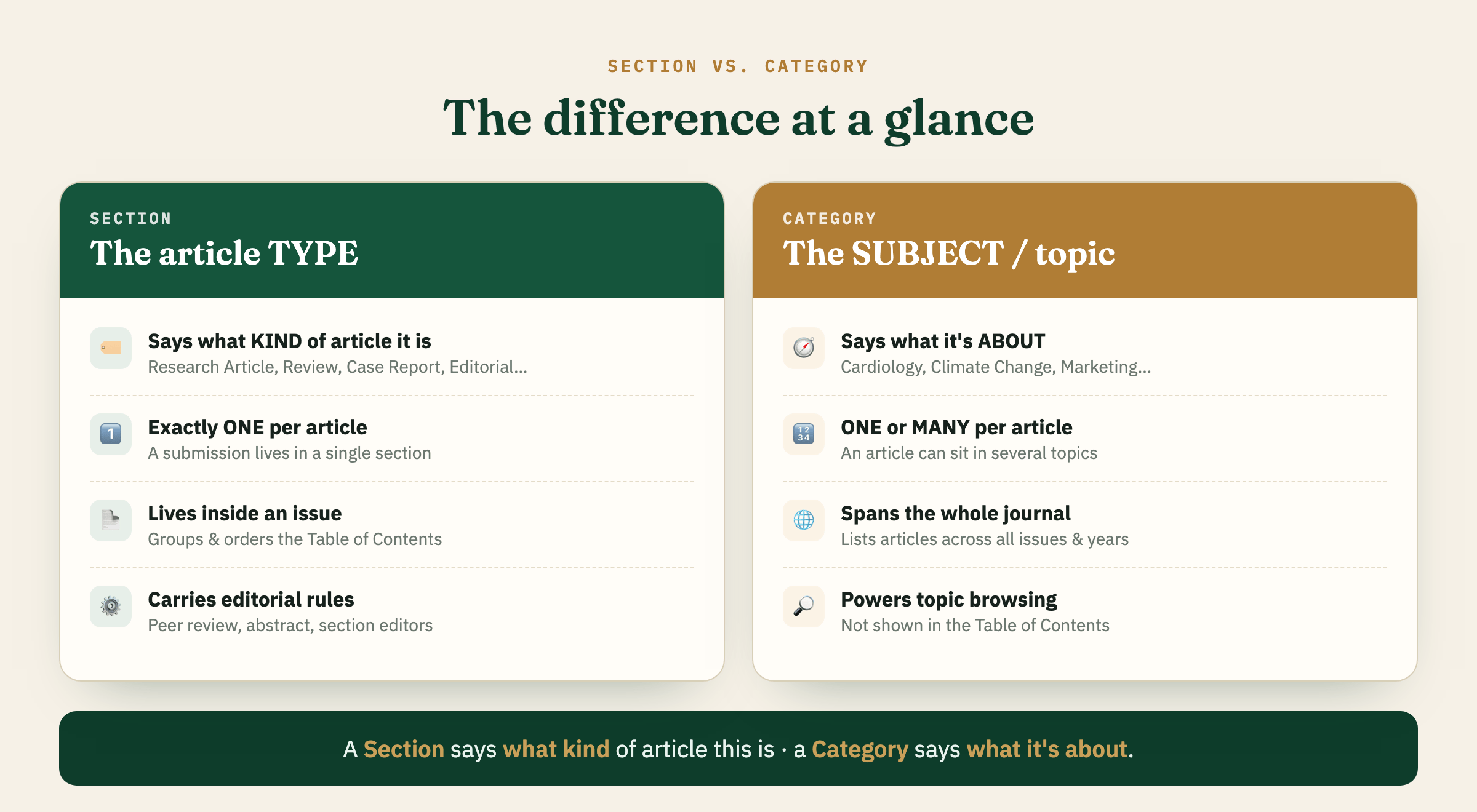
Section vs. Category at a glance — a Section is the article type; a Category is the subject.

The short answer

Section Category
What it represents The article type The subject / topic
Typical values Research Article, Review, Case Report, Editorial Cardiology, Climate Change, Marketing… (journal-specific)
How many per article? Exactly one One or many
Scope Lives inside a single issue Spans the whole journal, across all issues
Shows up in the Table of Contents? Yes — it groups the ToC No
Shows up in the article PDF? Usually yes (as the type header) Usually no
Can direct submissions to a section editor? Yes No
Hierarchy (parent/child)? No Yes (nested)
Main job Structure the issue & the record Let readers browse by topic

If you remember only one line: **a Section says what kind of article this is; a Category says what it’s about.**

What a Section really is

A Section is the structural building block of an issue. When you open any issue’s Table of Contents, the headings you see — “Research Articles,” “Reviews,” “Editorial” — are sections.

Key properties:

  • One section per submission. During submission, an article is placed in a single section. It cannot live in two sections at once.
  • It structures the Table of Contents. Sections group and order the articles within an issue.
  • It carries editorial rules. A section defines whether items are peer-reviewed, whether an abstract is required, word limits, section policy, and which section editors handle it.
  • It travels with the record. The section is part of your issue structure and is carried through your journal’s OAI-PMH feeds and native XML exports, which is how harvesters and indexes read your content’s structure.

Technically, a section is simply the single main editorial division a submission is attached to — OJS itself doesn’t force it to mean “type,” and some journals legitimately use sections for a discipline, a standing theme, or a special collection. But because a section maps so naturally onto article type, that’s how the overwhelming majority of well-run journals use it:

Research Article · Review Article · Case Report · Short Communication · Editorial · Letter to the Editor · Book Review

A note worth making: some journals create a single generic section called simply “Articles” and drop everything into it. OJS will let you do this, but it’s not ideal — indexers and readers still want to know the article type. If you go this route, make sure the article type is clearly stated inside the PDF (e.g., a “Research Article” label on the first page). Article type is one of the things indexes and reviewers check most often, so it should be clearly stated somewhere the reader can see it — even if the exact requirement varies from one standard to the next.

And this isn’t only house style. Publishing standards such as JATS XML (used by PubMed Central and many indexing services) formally enumerate article types — research-article, review-article, case-report, editorial, letter, and so on — through a dedicated article-type attribute. Keeping your sections aligned with these recognized types makes your exported metadata cleaner and more machine-readable downstream.

(For a deeper look at article types, see our companion guide: Types of Articles in Academic Publishing — A Comprehensive Guide.)

What a Category really is

A Category is a completely different animal. It is not a property of the article in the bibliographic sense — it’s a browsing and listing tool for readers.

Key properties:

  • A subject/topic layer. Categories organize your articles into thematic collections (“Cardiology,” “Public Health,” “Renewable Energy”).
  • Multiple categories per article. A single article about, say, air pollution and childhood asthma can sit in both “Environmental Health” and “Pediatrics” at the same time.
  • Journal-wide, not issue-bound. When a reader clicks a category, OJS lists every article in that topic — no matter which issue or year it was published in.
  • It has its own page and a browse block. Each category gets a dedicated page listing its articles; you can also enable a “Browse by Category” block in the sidebar so readers can explore topics directly.
  • It appears on the article landing page, linking readers to related articles — but it does not appear in the issue’s Table of Contents, and it normally does not appear in the PDF.
  • It can be nested. Categories support one level of parent/child hierarchy (e.g., “Clinical Medicine” → “Cardiology”), which sections cannot do.

In other words: sections describe this article, in this issue; categories describe a theme, across the entire journal.

Why OJS won’t let you delete a section

Here’s the scenario that starts most of these conversations:

“I want to delete a section, but OJS says someone is using it. But not all my articles use it — so why won’t it let me?”

The rule is stricter than people expect: **OJS blocks deletion if even one submission is still assigned to the section. “Most articles don’t use it” isn’t enough — you need zero** submissions attached.

And the culprit is usually a submission you weren’t thinking about:

  • an old article sitting in a back issue,
  • a declined or archived submission (these still count),
  • or an incomplete draft parked in the submission queue.

Do not force the deletion. If a section is removed while submissions are still attached to it, OJS can orphan those submissions — their section link becomes empty, and they can disappear from the interface entirely. That’s a data-integrity problem you don’t want.

The safe procedure:

  1. Find every submission still assigned to the section. Check all issues (including back issues), the active queue, and the Archives (declined/incomplete included).
  2. Open each one → Publication tab → reassign it to the correct section.
  3. When the count reaches zero, OJS will let you delete the section cleanly.
  4. Prefer to keep history intact? Deactivate the section instead of deleting it. It stays valid for already-published articles but stops accepting new submissions.

Five example journals: same sections, different categories

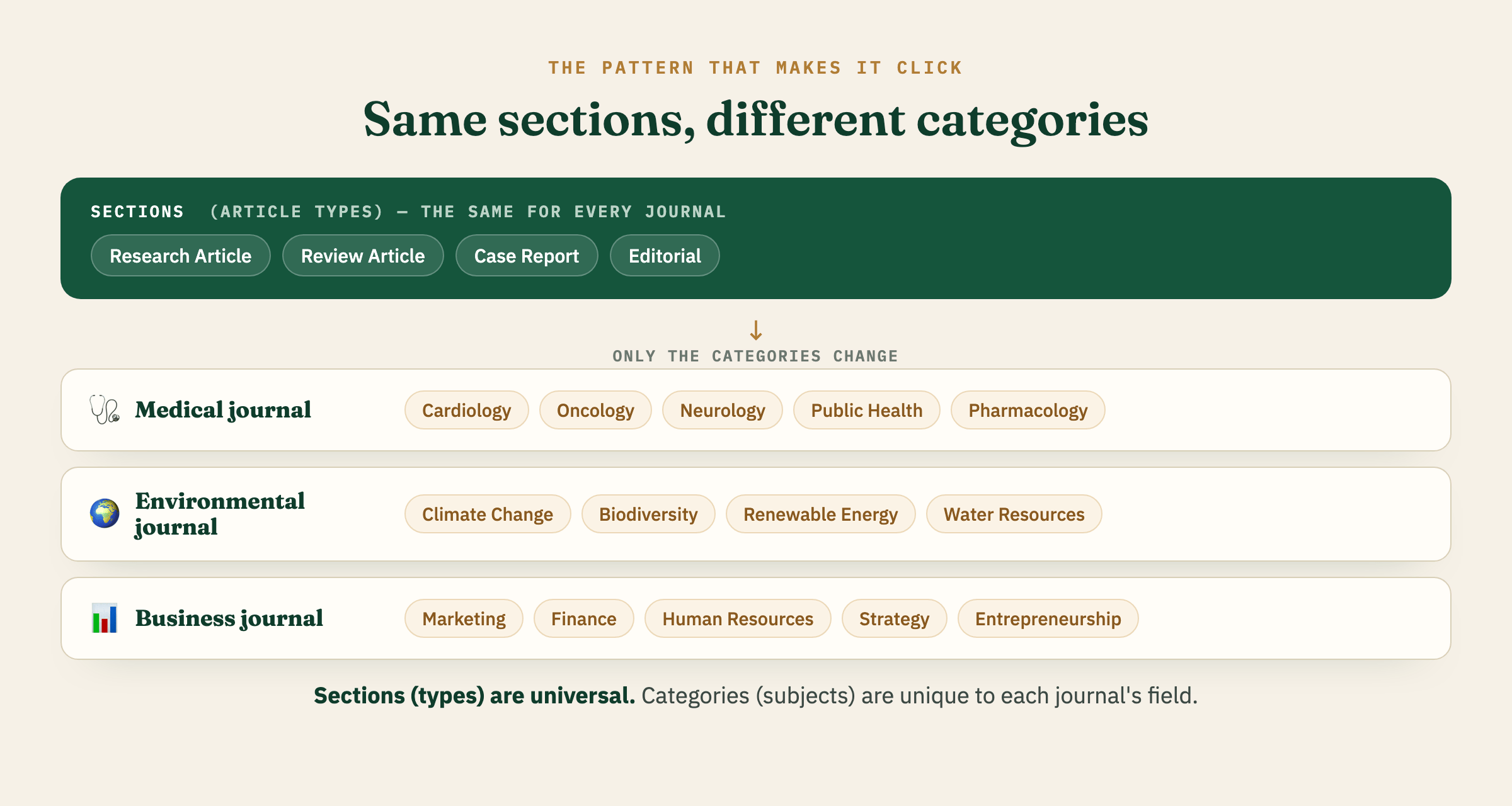
Here’s the pattern that makes everything click. Notice that the Sections (article types) stay almost identical from journal to journal — because article types are universal. What changes journal to journal is the Categories, because subjects are specific to each journal’s field.

Same sections, different categories across journals
The sections (article types) stay the same; only the categories (subjects) change from journal to journal.

1. A general medical journal

  • Sections (types): Research Article · Review Article · Case Report · Clinical Image · Editorial · Letter to the Editor
  • Categories (subjects): Cardiology · Oncology · Neurology · Infectious Diseases · Public Health · Pharmacology

A single case report on a heart-drug interaction could sit in both “Cardiology” and “Pharmacology” categories — while its section stays simply “Case Report.”

2. An environmental science journal

  • Sections (types): Research Article · Review Article · Short Communication · Perspective · Editorial
  • Categories (subjects): Climate Change · Biodiversity & Conservation · Water Resources · Renewable Energy · Pollution & Waste · Environmental Policy

A reader clicking “Renewable Energy” sees every relevant article from 2019 to today, whether it was a full research article or a two-page short communication.

3. An education journal

  • Sections (types): Research Article · Review Article · Case Study · Book Review · Editorial
  • Categories (subjects): Early Childhood Education · Higher Education · Educational Technology · Assessment & Measurement · Teacher Training · Inclusive Education

“Educational Technology” and “Higher Education” can both be tagged on one article about online learning in universities.

4. A business & management journal

  • Sections (types): Research Article · Review Article · Case Study · Viewpoint · Editorial
  • Categories (subjects): Marketing · Finance & Accounting · Human Resources · Entrepreneurship · Operations & Supply Chain · Strategy

Categories double as a de facto “explore by discipline” menu for readers who don’t care which issue an article appeared in.

5. A multidisciplinary / sustainability journal (categories aligned to the UN SDGs)

  • Sections (types): Research Article · Review Article · Short Communication · Commentary · Editorial
  • Categories (subjects): Quality Education · Good Health & Well-being · Clean Water & Sanitation · Affordable & Clean Energy · Climate Action · Sustainable Cities

Here categories act as a thematic index tied to a well-known framework — perfect for a browse block, and a single article can naturally serve more than one goal.

The mistake to avoid: mixing the two lists

The confusion almost always shows up the same way — the same labels appearing in both lists:

❌ Don’t do this

  • Sections: Original Research · Pharmacology · Clinical Medicine
  • Categories: Original Research · Pharmacology · Clinical Medicine

Here “type” and “subject” are tangled together, so neither list does its job: the Table of Contents is muddled, and topic browsing is meaningless because the topics duplicate the types.

✅ Do this instead

  • Sections (types): Original Research Article · Review Article · Case Report · Editorial
  • Categories (subjects): Pharmacology · Clinical Medicine · Medicinal Plants · Drug Safety · Hospital Practice

Same content — but now the Table of Contents is clean, and readers can still browse every topic across all issues. Keeping the two lists non-overlapping is exactly the right instinct; it simply works best when **Sections carry the type and Categories carry the *subject***.

Best-practice recommendations

  • Keep your section list short and type-based. Six to eight article types is plenty. Long, overlapping section lists make the Table of Contents messy and confuse both authors and indexers.
  • Use categories for subjects — and let them overlap freely. Multiple assignment is a feature, not a bug. That’s what makes topic browsing useful.
  • Turn on the Browse block (Website Settings → Appearance → Sidebar) so categories are actually visible to readers. Categories with no browse entry point are invisible work.
  • Never overload one field with both jobs. If you find yourself creating a section called “Cardiology,” that’s a sign a category is what you actually want.
  • State the article type in the PDF, regardless of how your sections are set up. This is what indexes look for.
  • Deactivate, don’t delete, when you retire a section that still holds published history.

FAQ

Can an article belong to two sections? No. One section per submission. If you need “an article that’s both a research article and belongs to the cardiology theme,” the theme goes in a category.

Can an article belong to two categories? Yes — as many as make sense.

Do categories affect my DOIs or Crossref deposit? No. DOI/Crossref deposits are article-level and don’t depend on categories. Categories are purely a website browsing feature.

Why does deleting a section feel so hard? Because OJS is protecting your data. A section with even one attached submission can’t be deleted, and forcing it risks orphaning those submissions. Reassign first, then delete.

Still unsure how to structure your journal’s sections and categories — or need help cleaning up an existing setup? OJS-Services.com supports 500+ journals across 29 countries with exactly this kind of configuration and migration work.

The post Sections vs. Categories in OJS: What’s the Difference, and Why Can’t I Delete My Section? first appeared on OPEN JOURNAL SYSTEM SERVICES.
Why Zenodo DOI for Academic Journals?

March 30th 2026 at 1:29 am

Zenodo is a free, open-access repository developed by CERN that allows researchers and publishers to assign Digital Object Identifiers (DOIs) to their publications — completely free of charge. Unlike commercial DOI providers, Zenodo offers unlimited DOI registration with no annual fees, making it an ideal solution for academic journals operating on limited budgets.

With a Zenodo DOI, your articles gain permanent, citable identifiers that are indexed by major academic databases, ensuring long-term discoverability and accessibility for the global research community.

How Zenodo DOI Works — What to Expect

It’s important to understand how Zenodo DOIs differ from services like CrossRef or DataCite. When you assign a DOI through Zenodo:

  • The DOI link (e.g., https://doi.org/10.5281/zenodo.12345) resolves to the Zenodo record page, not directly to your journal website.
  • Zenodo stores a copy of your article (PDF and metadata) as an open-access archive on its platform.
  • Your journal URL is included in the Zenodo metadata, so readers can easily find and visit your journal from the Zenodo page.

This is different from CrossRef, where the DOI link points directly to the article on your journal website. With Zenodo, your article gains an additional presence on a trusted, CERN-hosted repository — providing extra visibility, long-term preservation, and credibility. Many journals use Zenodo DOIs as a cost-free alternative to commercial DOI services, and the Zenodo landing page serves as a secondary access point that complements your journal.

The Challenge: A Tedious Manual Process

While Zenodo provides an excellent free DOI service, the process of depositing articles is entirely manual. For each article, journal editors must:

  1. Log in to Zenodo and create a new upload to reserve a DOI
  2. Copy the DOI and add it to the article’s PDF and OJS metadata
  3. After publishing the article in OJS, return to Zenodo
  4. Manually enter all metadata — title, authors, affiliations, abstract, keywords
  5. Fill in publishing information — journal name, ISSN, volume, issue, page numbers
  6. Upload the PDF file
  7. Review everything and publish the record

This process takes 10–15 minutes per article and is highly prone to errors — typos in author names, missing affiliations, incorrect page numbers, or forgotten keywords. For journals publishing 30–100+ articles per year, this becomes a significant burden on editorial staff.

Our Solution: Zenodo DOI Sync Plugin for OJS

Based on direct feedback and requests from our OJS clients and the academic publishing community, we developed the Zenodo DOI Sync Plugin — a comprehensive integration that automates the entire Zenodo deposit workflow directly from within OJS.

What previously took 10–15 minutes of manual data entry per article now takes a single click and a few seconds. All metadata is pulled directly from OJS, eliminating human error and ensuring consistency between your journal and Zenodo records.

We continue to actively develop this plugin and provide dedicated support based on user feedback and evolving Zenodo API requirements.

Key Features

🔑 Secure Token-Based Authentication

The plugin connects to Zenodo using your personal access token — no passwords stored, no complex OAuth flows. Simply generate a token from your Zenodo account and paste it into the plugin settings. Each journal can have its own Zenodo account and token.

🏷️ One-Click DOI Reservation

Reserve a DOI from Zenodo without leaving OJS. The DOI is automatically saved to the article’s identifier field. No need to switch between OJS and Zenodo.

📋 Automatic Metadata Synchronization

With a single click, the plugin transfers all article metadata to Zenodo:

  • Title — in the article’s original language
  • Authors — with full names, affiliations, and ORCID identifiers
  • Abstract — with HTML formatting preserved (bold, italic, paragraphs)
  • Keywords — all subject keywords from the article
  • Journal Information — journal name, ISSN, volume, issue, page numbers
  • Publication Date — from the OJS publishing date

📄 Automatic File Upload

The plugin automatically uploads all galley files (PDF and others) from OJS to Zenodo. It handles file cleanup — removing old files before uploading new ones — ensuring your Zenodo record always matches your OJS content.

🌐 Zenodo Community Integration

If your journal has a Zenodo community, the plugin can automatically associate new deposits with your community. Simply enter your community slug in the settings, and every new DOI reservation will be linked to your community page.

🚀 Publish to Zenodo from OJS

Once your article is published in OJS, you can publish it to Zenodo with one click. The plugin handles metadata sync, file upload, community review submission, and publication — all in a single operation.

📊 DOI Management Dashboard

A dedicated management page in the OJS sidebar gives you a complete overview of all articles and their Zenodo status:

  • Filter by Zenodo status (Draft / Published), OJS status, or issue
  • Search by title, DOI, or article ID
  • Sort by any column
  • Sync or publish individual articles directly from the dashboard
  • Color-coded status badges for instant visual overview

🔄 Legacy DOI Scanner

Already have articles with Zenodo DOIs that were created manually? The built-in scanner finds all existing Zenodo DOIs in your journal, checks their current status on Zenodo (draft or published), and updates the local database — so you can manage everything from one place.

🌍 Multi-Language Support

The plugin interface is fully translated in English and Turkish, with support for additional languages. All labels, messages, and notifications adapt to your OJS language setting.

🔒 Role-Based Access Control

Only Site Administrators and Journal Managers can access Zenodo features. Authors, reviewers, and other users cannot see or interact with DOI management tools.

What’s Included

  • ✅ Full plugin with all features described above
  • ✅ Installation and configuration support
  • ✅ Zenodo account and token setup assistance
  • ✅ Community configuration help
  • ✅ Free updates for compatibility and improvements
  • ✅ Ongoing technical support

Continuous Updates & Important Notes

This plugin is actively maintained and regularly updated to keep pace with OJS releases and Zenodo API changes. All updates are provided free of charge.

A note about Zenodo: Zenodo is an independent service operated by CERN with its own policies and eligibility criteria. While Zenodo offers free DOI registration for most academic content, they may apply restrictions on certain types of publications or journals at their discretion. Such policies are determined solely by Zenodo and are outside the scope of this plugin. We recommend checking Zenodo’s policies to confirm eligibility for your journal.

Compatibility

  • OJS Version: 3.3.x
  • PHP: 7.4, 8.0, 8.1
  • Zenodo API: InvenioRDM REST API

Get the Plugin →

The post Why Zenodo DOI for Academic Journals? first appeared on OPEN JOURNAL SYSTEM SERVICES.

COAR Resource Types in OJS: Ensuring OpenAIRE Compliance

October 28th 2025 at 9:58 pm

To achieve full OpenAIRE compliance, OJS journals must accurately classify their content using the COAR Resource Type system.

What Is the COAR Resource Type Classification System?

In the world of open-access publishing, content is only as visible as the metadata behind it.
The COAR Resource Type Classification System — developed by the Confederation of Open Access Repositories (COAR) — provides a unified way to describe what kind of resource a publication really is.

Whether it’s a research article, dataset, software package, or interactive web resource, this classification ensures that repositories, harvesters, and indexing systems like OpenAIRE, Crossref, or ORCID can accurately recognize and categorize your content.

It’s not just a list of labels — it’s the universal vocabulary of academic content.

Why It Matters

  • OpenAIRE Compliance: Ensures your OJS journal metadata meets European Open Science standards.
  • 🌐 Global Discoverability: Makes your publications compatible with international repositories and aggregators.
  • ⚙️ Consistent Metadata: Standardizes resource descriptions across OJS, DSpace, Zenodo, and other open repositories.
  • 📊 Interoperability: Enables seamless exchange of records via OAI-PMH and other metadata protocols.

How It Works in OJS

The OpenAIRE plugin for OJS integrates COAR Resource Types directly into your journal’s metadata.
When activated, the plugin automatically maps each article type to a corresponding COAR category — ensuring that your repository exports valid and compliant records through the OAI-PMH interface.

This not only saves editorial time but also guarantees that your journal meets the OpenAIRE Guidelines for Literature Repository Managers (v4.0).

COAR Resource Type Categories

Below is a practical overview of the main COAR categories and what kind of materials they typically represent in research publishing.

🎨 Artistic Work

Creative outputs such as performances, exhibitions, digital art, and visual installations — often published by arts faculties or cultural repositories.

🗺️ Cartographic Material

Spatial and geographic representations.

  • Map: Topographic or thematic maps used in earth sciences, geography, and urban studies.

📦 Collection

Curated groups of related content, often organized by project, author, or topic.

  • Archival Collection: Historical records, correspondence, or digitized archives.
  • Court Documents: Legal records or case files.

📊 Dataset

Structured data from research activities — essential for reproducibility and open science.
Examples include:

  • Experimental Data: Lab results, measurements, or sensor data.
  • Survey Data: Results from questionnaires or social research.
  • Genomic Data: DNA sequencing and bioinformatics data.
  • Simulation Data: Model outputs and computational analyses.
  • Laboratory Notebook: Raw experimental notes and logs.

💡 Design

Creative and technical design outputs.

  • Industrial Design: Product or engineering prototypes.
  • Layout Design: Publication layouts or digital interface designs.

🖼️ Image

Visual or multimedia content.

  • Still Image: Photographs, figures, illustrations.
  • Video (Moving Image): Recorded lectures, animations, or documentaries.

🌐 Interactive Resource

Web-based or user-interactive materials.

  • Website: Research portals, educational microsites, or project dashboards.

🧭 Knowledge Organization System

Taxonomies, ontologies, and controlled vocabularies used to organize information within repositories and research databases.

🎓 Learning Object

Educational or training materials — including e-learning modules, tutorials, and teaching resources.

💻 Software

Code and computational tools used in research.

  • Research Software: Analytical or simulation software developed for scientific studies.
  • Source Code: Original programming code in any language (e.g., Python, R, PHP).

📚 Text

The most comprehensive category, covering all text-based academic outputs.
Includes:

  • Book / Book Part: Monographs, edited volumes, or chapters.
  • Journal Article: Research, review, data, or software papers.
  • Thesis: Bachelor’s, master’s, or doctoral dissertations.
  • Conference Output: Papers, posters, or presentations.
  • Report: Technical, policy, or project deliverables.
  • Preprint: Early versions of manuscripts before peer review.
  • Review / Commentary / Peer Review: Evaluation or critique articles.
  • Working Paper: Preliminary findings shared before formal publication.

🔊 Sound

Audio recordings, interviews, and music compositions — commonly used in ethnography, linguistics, and digital humanities.

⚙️ Workflow

Digital representations of processes, pipelines, or methodological steps.
Useful for documenting AI model training, laboratory procedures, or research automation.

Integrating COAR Resource Types in OJS

OJS users can easily implement the COAR system using the OpenAIRE plugin, ensuring:

  • Automatic assignment of resource types to submissions.
  • Metadata validation for OpenAIRE harvesters.
  • Improved visibility of published content in global repositories.

This integration helps your journal transition from simply open access to openly connected — fully interoperable within the international research ecosystem.

Final Thoughts

The COAR Resource Type Classification System is not just a metadata list — it’s a foundation for international visibility, data interoperability, and research transparency.

For journals powered by OJS, adopting this classification through the OpenAIRE plugin means more than compliance; it means joining a global network of discoverable, machine-readable academic content.

The post COAR Resource Types in OJS: Ensuring OpenAIRE Compliance first appeared on OPEN JOURNAL SYSTEM SERVICES.

Journal Metrics: Why They Matter and How to Present Them in Your Journal Website

September 21st 2025 at 2:34 pm

Introduction: Why Journal Metrics Matter

In today’s publishing world, journals compete not only on the quality of the papers they publish but also on how clearly they communicate their credibility, efficiency, and visibility. Readers, authors, and reviewers are increasingly selective. They want to know: How fast does this journal process submissions? What’s the acceptance rate? Is it indexed in trusted databases? How widely is it read and cited?

That’s where journal metrics come in.
Metrics are not just numbers. They are signposts of trust, evidence of performance, and indicators of future growth. When displayed correctly, journal metrics help authors decide where to submit, reviewers where to invest their time, and institutions which journals to recognize and support.

For journal managers, however, a recurring question is: Which metrics should we present? Where should they appear? In this guide, we’ll break down the most important journal metrics, explain why they matter, and offer practical suggestions on how to showcase them—both on the homepage and in a dedicated “Journal Metrics” or “Statistics” section.

This image shows the metrics section from a custom OJS theme we developed, designed to display key journal statistics in a clear and user-friendly format.


1. Publishing Speed & Process Metrics

One of the first things authors look at is how long it takes to publish in your journal. Nobody wants to wait years for their work to appear. Process-related metrics signal efficiency, transparency, and professionalism.

Key examples include:

  • Days to First Decision: Example – 14 days. Shows how quickly editors respond initially.
  • Submission to Acceptance: Example – 120 days. Communicates the overall timeline authors can expect.
  • Acceptance to Publication: Example – 15 days. Highlights production speed once a paper is accepted.
  • Average Review Time: Example – 35 days. Transparency about peer review efficiency.
  • Time to First Review Assignment: Example – 20 days. Shows how quickly reviewers are engaged.
  • Total Publication Time: Example – 135 days. Summarizes the journey from submission to publication.

Why it matters: Shorter times can make your journal more attractive. Publishing speed also signals strong editorial workflows and reviewer management.

“Instead of reading the full text, you can also watch our video on this topic here:


2. Acceptance & Publishing Statistics

Numbers also tell the story of selectivity and productivity. These statistics highlight both your journal’s scale and its editorial standards.

Examples:

  • Annual Submissions Received: Example – 500 per year.
  • Submissions Accepted: Example – 150.
  • Acceptance Rate: Example – 30%. Indicates competitiveness.
  • Rejection Rate: Example – 70%. Often paired with acceptance.
  • Articles Published per Year: Example – 120. Shows consistency.
  • Number of Issues per Year: Example – 6 issues annually.
  • Special Issues Ratio: Example – 20%. Shows flexibility in publishing thematic collections.

Why it matters: These numbers help authors gauge how competitive your journal is, and help readers understand output volume. High-quality journals balance a healthy submission flow with thoughtful acceptance.


3. Impact & Citation Metrics

Perhaps the most widely recognized, impact and citation metrics demonstrate scholarly influence.

Common examples:

  • Impact Factor (Clarivate): Example – 3.3.
  • 5-Year Impact Factor: Example – 4.2.
  • CiteScore (Scopus): Example – 2.9.
  • Scimago Journal Rank (SJR): Example – 0.65.
  • Source Normalized Impact per Paper (SNIP): Example – 1.2.
  • H-Index: Example – 45.
  • Average Citations per Article: Example – 3.1.

Why it matters: These are the metrics universities, funders, and researchers often consider first. They highlight not just the quality of articles, but the journal’s reputation in its field.


4. Access & Indexing Information

Beyond citations, a journal’s access model and indexing profile are key to visibility and compliance.

Important items:

  • Access Type: Open Access vs. Subscription. Example – Open Access.
  • License Type: Creative Commons options (e.g., CC BY 4.0).
  • Article Processing Charge (APC): Example – 1000 USD, or “No APCs”.
  • Indexing Databases: DOAJ, Web of Science, Scopus, PubMed, TR Dizin, EBSCO, Ulakbim.
  • Plagiarism Check Tools: iThenticate, Turnitin.

Why it matters: Indexing increases discoverability. Access policies affect author trust. Displaying them openly communicates transparency and alignment with international publishing standards.


5. Author & Reviewer Diversity

Academic publishing is global, and diversity metrics reflect inclusivity.

Examples:

  • International Authorship: Example – 60%.
  • Number of Contributing Countries: Example – 40+.
  • Reviewer Pool Size: Example – *800+.
  • Reviewers per Paper: Example – 2.5 on average.
  • Editorial Board Countries: Example – 25 different nations.
  • Gender Diversity Stats: Example – 45% women authors.

Why it matters: These metrics demonstrate a journal’s reach and inclusivity. Many indexers (such as DOAJ and Scopus) consider international diversity a key criterion.


6. Reader Engagement & Visibility

Finally, journals should not ignore reader-facing metrics, which show impact beyond academia.

Examples:

  • Annual Downloads: Example – 150,000+.
  • Downloads per Article: Example – 1,200.
  • Monthly Unique Visitors: Example – 20,000.
  • Altmetric Attention Score: Example – 8.5 average.
  • Social Media Mentions: Example – 1,500 total.
  • Mendeley Readers: Example – 5,000 total / 40 per article.
  • Registered Users or Subscribers: Example – 3,500 members.

Why it matters: These statistics highlight your journal’s visibility, both academically and publicly. They can reassure authors that their work will be widely read and shared.


7. Beyond Numbers: Integrations and Tools

Metrics are powerful, but so are the technical integrations that support visibility and trust. If your journal runs on Open Journal Systems (OJS), you can leverage built-in integrations:

  • ORCID: Enables authors and reviewers to link their publications to a verified researcher ID.
  • Crossref: Ensures DOIs are assigned, making articles permanent and citable.
  • Google Scholar: Increases discoverability.
  • iThenticate/Turnitin: Shows commitment to plagiarism-free publishing.
  • PlumX Metrics: Offers alternative metrics beyond citations.
  • OAI-PMH Protocol: Ensures interoperability with repositories and databases.
  • RSS Feeds: Keeps readers updated.
  • Sitemaps: Improves SEO and indexing by Google.

Why it matters: These integrations make your journal stand out, signaling professionalism and technical maturity.


8. How to Present Journal Metrics

Now that we know what to show, the question is: where to show them?

  • Homepage: Display headline numbers (e.g., Impact Factor, Acceptance Rate, Days to First Decision). Keep it simple and eye-catching.
  • Dedicated “Journal Metrics” Page: Present detailed breakdowns—publishing speed, acceptance statistics, diversity, engagement.
  • Indexing Information: On homepage, show 2–3 key indexes (e.g., DOAJ, Scopus). For the full list, link to a dedicated “Indexing & Databases” page.
  • Always Include “Last Updated” Date: Transparency builds trust. For example: Metrics last updated: March 2025.

9. Why More (Accurate) Metrics = More Visibility

The more accurate and transparent your metrics, the stronger your journal’s profile becomes. Metrics help you:

  • Build trust with authors and reviewers.
  • Improve discoverability with readers and databases.
  • Increase credibility in evaluations and rankings.
  • Enhance scalability for future growth.
  • Strengthen your competitive edge in attracting quality submissions.

Put simply: A journal without visible metrics is like a shop without a signboard. People may walk past, but few will come in.


10. Guidance for Journal Managers

Not all journals are at the same stage.

  • New journals: Focus on process metrics (speed, acceptance rates), access policy, and integrations (DOIs, ORCID, iThenticate).
  • Established journals: Add citation-based metrics (Impact Factor, CiteScore), diversity stats, and reader engagement data.
  • All journals: Keep metrics updated and clear. Outdated or missing data damages credibility.

At the end of the day, the right mix of metrics depends on your journal’s maturity, scope, and audience.


11. Extended Checklist of Journal Metrics

Since every journal is unique, here is a broad list of possible metrics. Journals can select the ones most relevant to their scope and maturity:

  • Publishing Speed & Process: Days to first decision, review time, acceptance to publication, total publication time.
  • Acceptance & Publishing Statistics: Submissions received, accepted, acceptance/rejection rate, articles published, number of issues, special issues.
  • Impact & Citations: Impact Factor, CiteScore, SJR, SNIP, H-Index, citations per article.
  • Access & Indexing: Access type, license, APCs, indexing databases, plagiarism tools.
  • Diversity: International authorship, contributing countries, reviewer pool size, gender diversity.
  • Engagement: Downloads, unique visitors, Altmetrics, social media mentions, Mendeley readers.
  • Technical Integrations: ORCID, Crossref, Google Scholar, iThenticate, PlumX, OAI-PMH, RSS, sitemap.

Note: These metrics vary between journals. Newer journals may not yet have citation metrics, while established ones can showcase both quantitative and qualitative indicators. Pick what’s relevant, but keep expanding as your journal grows.


Conclusion

Journal metrics are more than just numbers—they are a communication tool. They tell authors that your journal is efficient, respected, and trustworthy. They reassure reviewers that their time is valued. They show readers that published research is widely read and cited.

By strategically presenting metrics on your website—highlighting a few on the homepage, and listing a comprehensive set on a dedicated page—you can strengthen your journal’s visibility, impact, and reputation.

At OJS Services, we help journals achieve exactly that. From new journal setup to OJS upgrades, from plugin integrations to custom theme development, we provide the technical and strategic support you need to present your journal at its very best.

The post Journal Metrics: Why They Matter and How to Present Them in Your Journal Website first appeared on OPEN JOURNAL SYSTEM SERVICES.

Long-Term Content Preservation in OJS: A Guide to LOCKSS, CLOCKSS and PKP PN

July 28th 2025 at 7:57 pm

Ensuring your journal content remains available and intact in the long run is just as important as publishing it in the first place. This is where digital preservation systems like LOCKSS, CLOCKSS, and the PKP Preservation Network (PKP PN) come into play. Each system provides a safeguard against data loss and ensures persistent access to scholarly work.

🔐 Why Does Archiving Matter in Academic Publishing?

  • Guarantees uninterrupted access to your articles—even in case of server or hosting failure.
  • Supports compliance with best practices in open-access publishing.
  • Meets requirements of major indexing services like DOAJ, Scopus, and Web of Science.
  • Improves trust and transparency with authors, readers, and libraries.
  • Recommendation: Publish your archiving policy on the “About” page of your journal.

✅ PKP Preservation Network (PKP PN)

  • Who can use it? Journals using OJS 3.1.2 or later
  • Cost: ❌ Free
  • Application Required? ❌ No
  • How to activate: Enable from OJS dashboard:
    Settings → Distribution → Archiving → PKP Preservation Network (PN)

Once enabled, your journal content is automatically queued for secure replication in the PKP preservation network. No manual intervention is needed.

🔄 LOCKSS (Lots of Copies Keep Stuff Safe)

  • Purpose: Decentralized storage across library systems
  • Cost: ⚠️ Often free, but cooperation with institutions is required
  • Application Required? ✅ Yes
  • OJS Setting Enough? ❌ No

Simply enabling LOCKSS in OJS displays your intent—it doesn’t enroll your journal. You must also create a LOCKSS Publisher Manifest and work with libraries running LOCKSS nodes.

🌐 lockss.org
📧 lockss-support@lockss.org

🕒 CLOCKSS (Controlled LOCKSS)

  • Purpose: Long-term “dark archive” preservation
  • Cost: ✅ Paid (based on journal size)
  • Application Required? ✅ Yes
  • OJS Setting Enough? ❌ No

To use CLOCKSS, publishers must establish a formal agreement. CLOCKSS releases content to the public only if the journal becomes inactive, making it ideal for long-term assurance.

🌐 clockss.org
📧 contact@clockss.org

📌 Understanding the Archiving Settings in OJS

In OJS (3.3+), go to Settings → Distribution → Archiving and you’ll see options to enable LOCKSS, CLOCKSS, and PKP PN. These checkboxes:

  • Display archiving affiliations in the “About” section of your journal
  • Inform readers and indexing services of your archiving policy

Note: Checking LOCKSS or CLOCKSS does not activate actual preservation. External registration is still required.

📝 What Should You Include in Your Archiving Policy?

It’s best practice to clearly communicate your archiving systems under:

  • About the Journal → Archiving

Sample policy statement:

This journal utilizes the PKP Preservation Network (PKP PN) to ensure long-term preservation of its published content. Additionally, it supports LOCKSS and CLOCKSS archiving protocols for eligible library networks.

🎯 Comparison Table

Preservation Network Available in OJS Requires Application Cost Key Notes
PKP PN ✅ Yes ❌ No ❌ Free Ideal for OJS users; automated integration
LOCKSS ✅ Yes ✅ Yes ⚠️ Depends Requires collaboration with institutions
CLOCKSS ✅ Yes ✅ Yes ✅ Paid Best for commercial journals with formal contracts

🧩 Final Takeaways

  • PKP PN is the easiest and fastest preservation solution for OJS journals.
  • LOCKSS and CLOCKSS require external coordination and setup.
  • Transparent archiving builds trust and supports indexing applications.
  • Digital preservation is an essential part of sustainable publishing practices.

The post Long-Term Content Preservation in OJS: A Guide to LOCKSS, CLOCKSS and PKP PN first appeared on OPEN JOURNAL SYSTEM SERVICES.

Why ROR IDs Matter?

June 30th 2025 at 8:28 pm

📌 What Is ROR?

The Research Organization Registry (ROR) is a global, open, and community-led initiative that provides unique persistent identifiers for research organizations — much like ORCID for researchers or DOI for articles.

Each institution is assigned a unique ROR ID. This allows scholarly systems to store, recognize, and retrieve affiliation data consistently, regardless of spelling variations or language differences.

ROR records include:

  • The official name and alternative names in different languages

  • Location and website of the institution

  • Cross-linked identifiers like ISNI, GRID, Crossref, and Wikidata

  • Relationships with other organizations (e.g., hospitals, research centers)

🎯 Why Is ROR Important?

In most publishing systems, authors manually type their institution names during manuscript submission. While this seems simple, it often leads to inconsistencies due to:

  • Typing errors

  • Local language differences

  • Personal or unofficial naming conventions

These inconsistencies can:

  • Break metadata quality

  • Mislead statistical analysis

  • Disrupt institutional reporting

  • Hinder indexing and discovery

By using ROR, systems ensure that all affiliations point to a single, accurate, and standard identity — improving interoperability, searchability, and reporting accuracy.

🏛 Let’s See This in Action: Gazi University’s ROR Record

To understand how ROR helps solve these problems, let’s explore a real example — Gazi University in Turkey.

🔗 https://ror.org/054xkpr46

On this ROR profile, you’ll find:

  • Official name: Gazi University

  • Other names: Gazi Üniversitesi (tr), Qazi Universiteti (az)

  • Location: Ankara, Türkiye

  • Website: http://gazi.edu.tr

  • Linked identifiers:

    • GRID: grid.25769.3f

    • ISNI: 0000 0001 2169 7132

    • Crossref Funder ID, Wikidata

  • Related organizations: Gazi Hastanesi

In a manual system, authors might enter any version of this name — from “Gazi University” to “Gazi Üniv.” to “Qazi Univ.” — all of which the system might treat as separate institutions.
But with ROR, all these variations are unified under one consistent institutional identity.

🔌 How Does This Work in OJS?

The ROR Plugin is available in the OJS Plugin Gallery starting with version 3.2. Once installed and enabled:

  • Authors are prompted to select their institution from the ROR-powered list during submission.

  • The system fetches standardized metadata from ROR, ensuring consistency.

  • Multiple affiliations can be added if needed.

  • The selected ROR ID is stored in the metadata and displayed on the article page.

This is especially helpful for multilingual journals, where the same institution may be entered in English, Turkish, Spanish, or other languages.

💡 Key Benefits of Using ROR in OJS

✅ Prevents human errors in affiliation names
✅ Unifies institution data across languages
✅ Supports multiple affiliations for one author
✅ Improves indexing and interoperability
✅ Helps generate accurate institutional reports
✅ Enhances metadata quality for repositories and funders

🛠 Ready to Future-Proof Your Journal?

At OJS-Services.com, we specialize in helping journals implement powerful tools like the ROR Plugin. Whether you’re just starting out or managing a large publishing platform, we can support you with:

  • ✔ OJS installation and setup

  • ✔ Plugin integration (ROR, ORCID, Crossref, more)

  • ✔ System updates and theme customization

  • ✔ Hosting and long-term support

📧 Get in touch with us today to bring your journal up to international standards — clean, consistent, and ready for the future of scholarly publishing.

The post Why ROR IDs Matter? first appeared on OPEN JOURNAL SYSTEM SERVICES.

❌
❌